Logging in via WhatsApp
You can log in to the webapp using an OTP delivered to your WhatsApp instead of a password.1
Click Phone Login
From the login page, click Phone Login.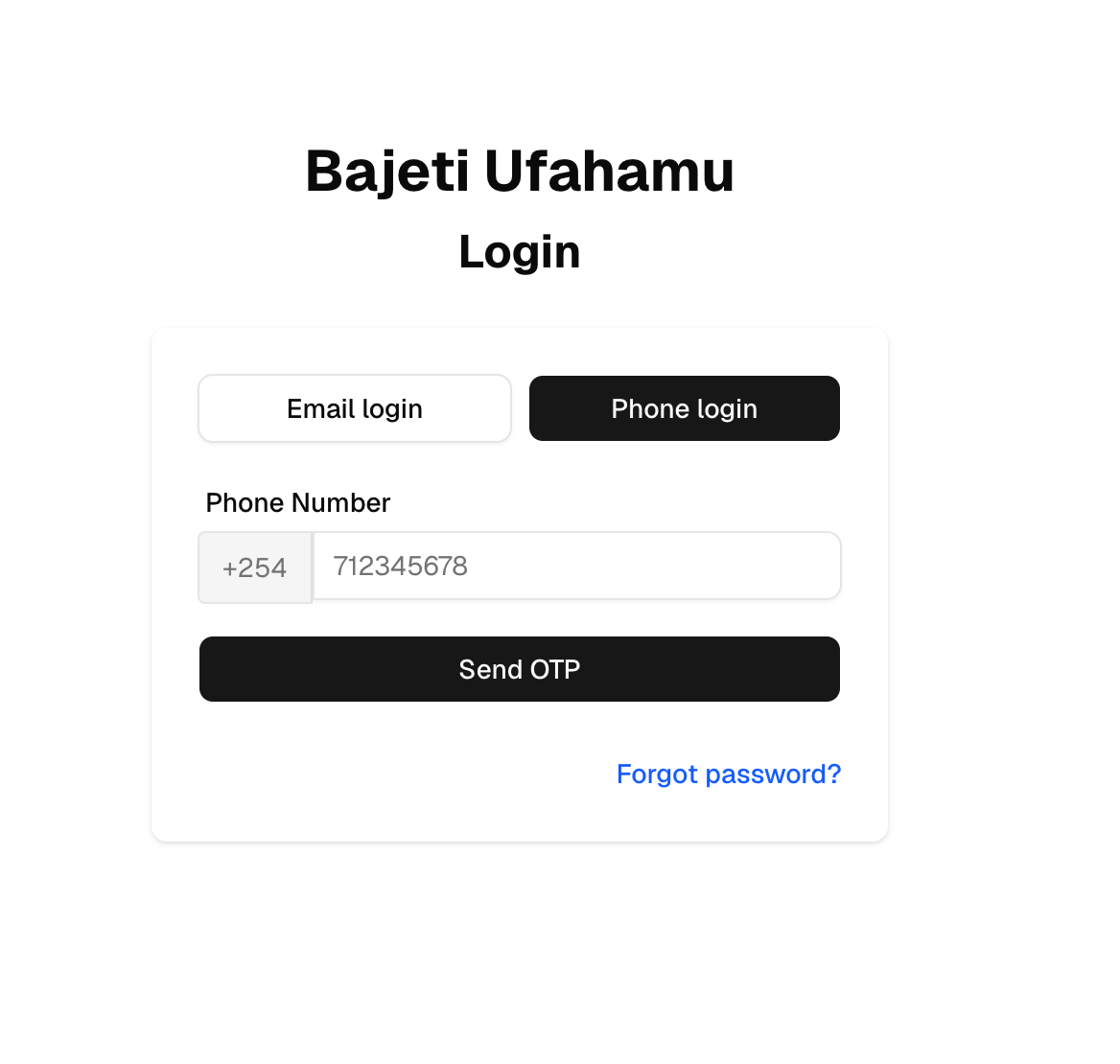
2
Enter your phone number and send the OTP
Type your phone number, then click Send OTP.
3
Wait for the verify card
The verify card appears, ready for the OTP.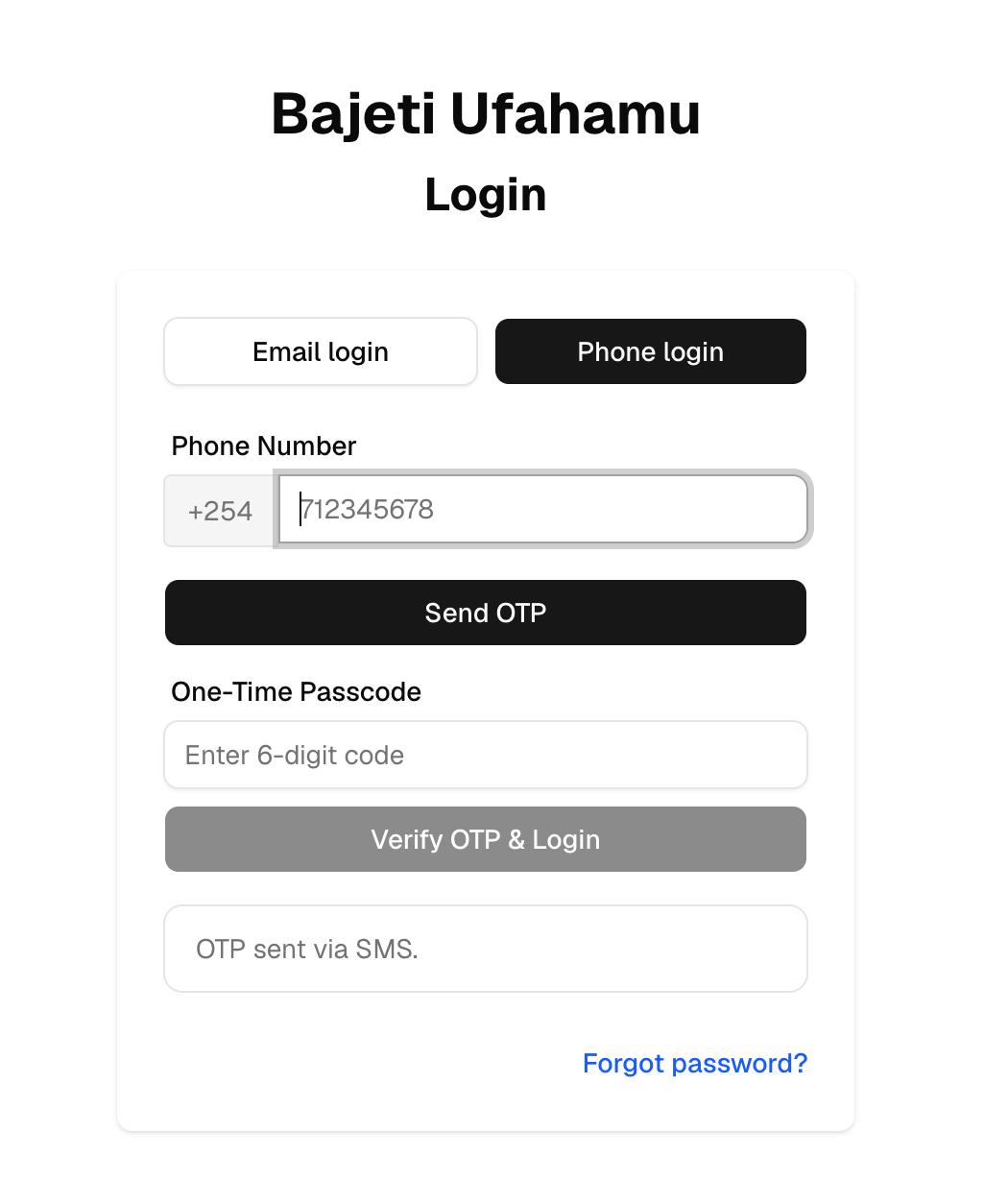
4
Check WhatsApp for the OTP
Open WhatsApp — the Bajeti Ufahamu assistant will have sent you the code.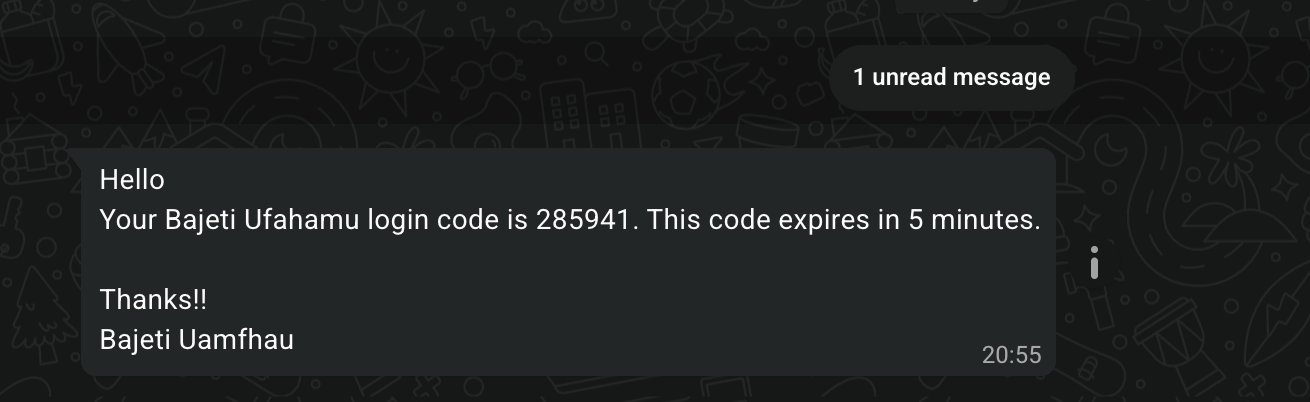
5
Enter the OTP and log in
Type the code into the OTP field, then click Verify OTP to log in.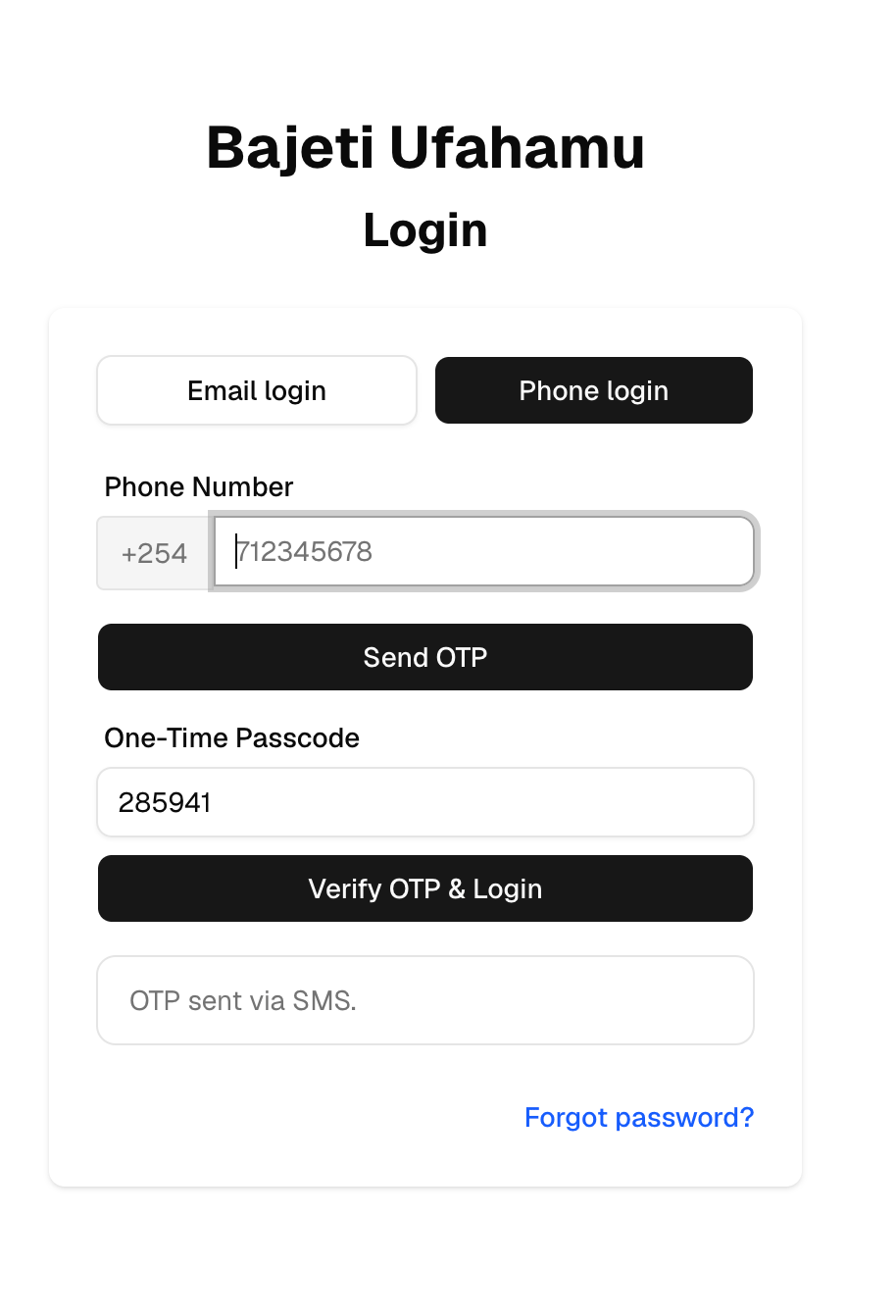
Submitting feedback (text)
1
Start the conversation
Send Hello to the Bajeti Ufahamu number, +254 180 785 965, to open a conversation.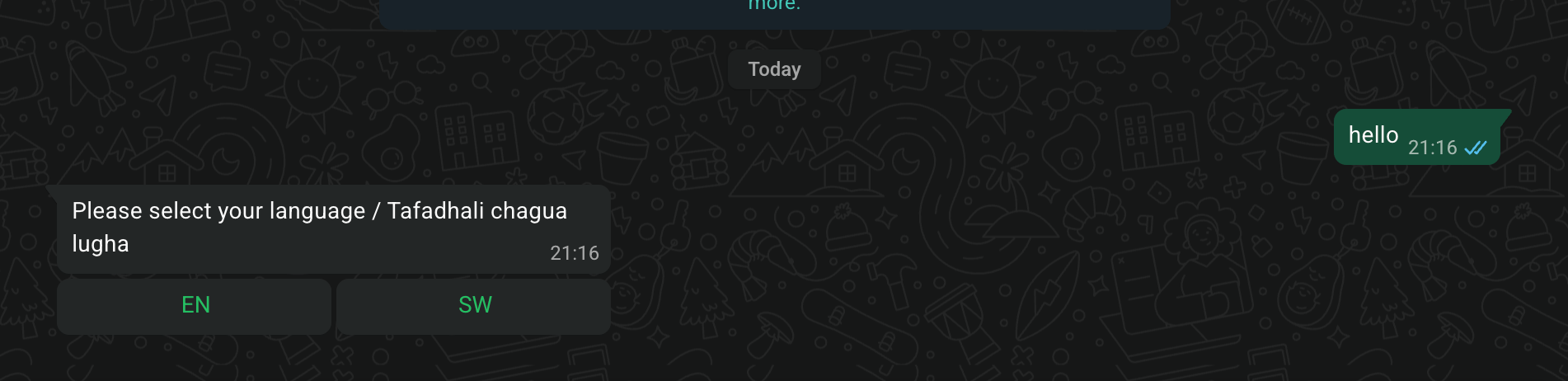
2
Select a language
Choose the language you want to chat in. The bot will keep replying in that language for the rest of the session.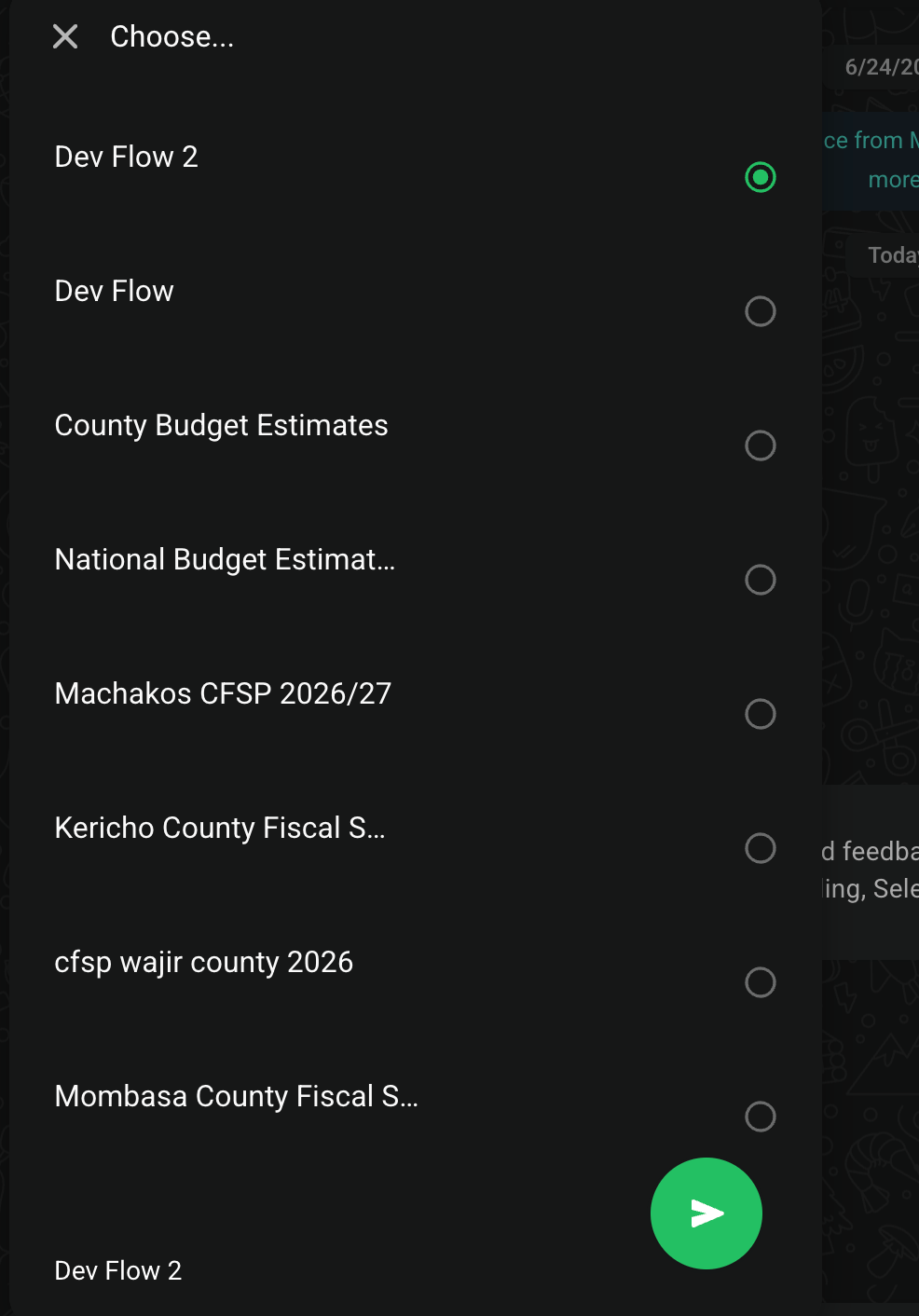
3
Pick a flow
The bot lists the flows you can submit feedback to. What you see depends on your role: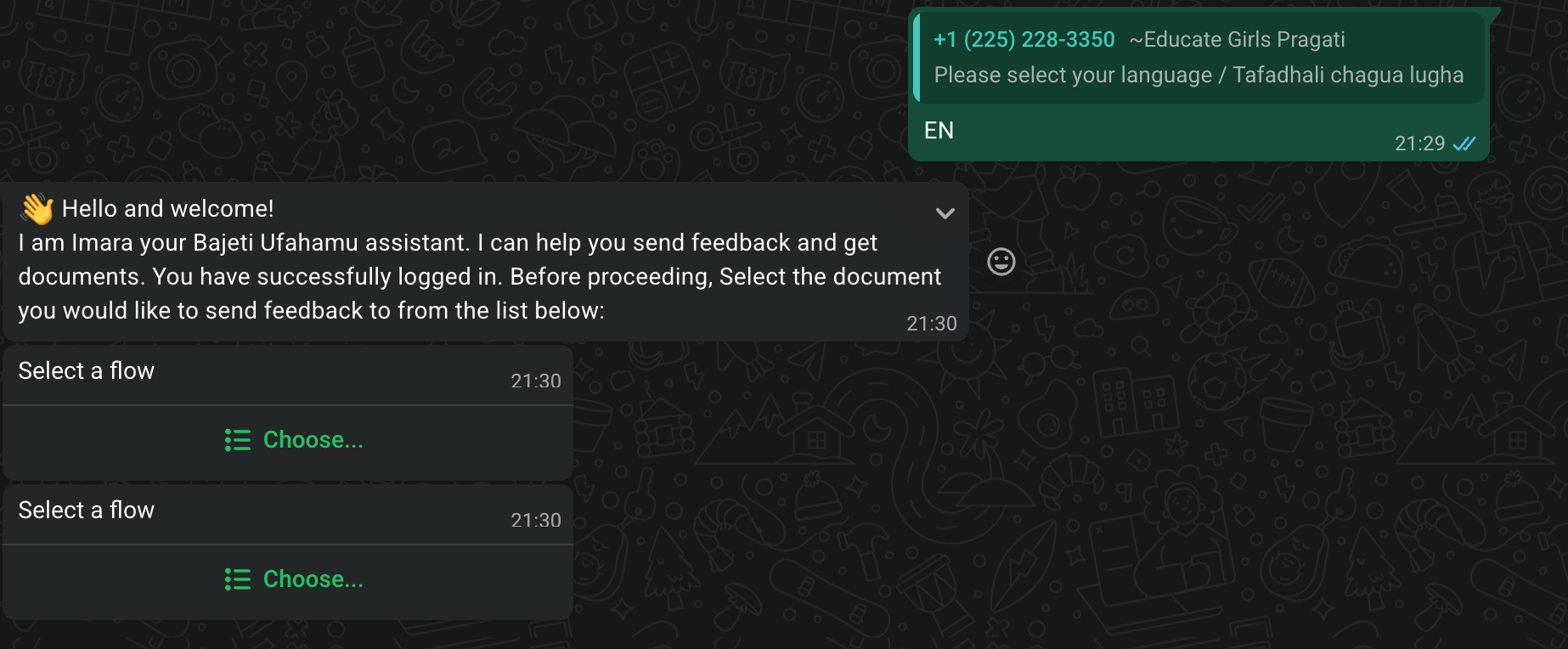
- Champions and Facilitators: flows in their county
- Coordinators: flows in their region
- SuperAdmins: every flow on the platform
4
Open the flow
Select the flow, then tap Message to start giving feedback on it.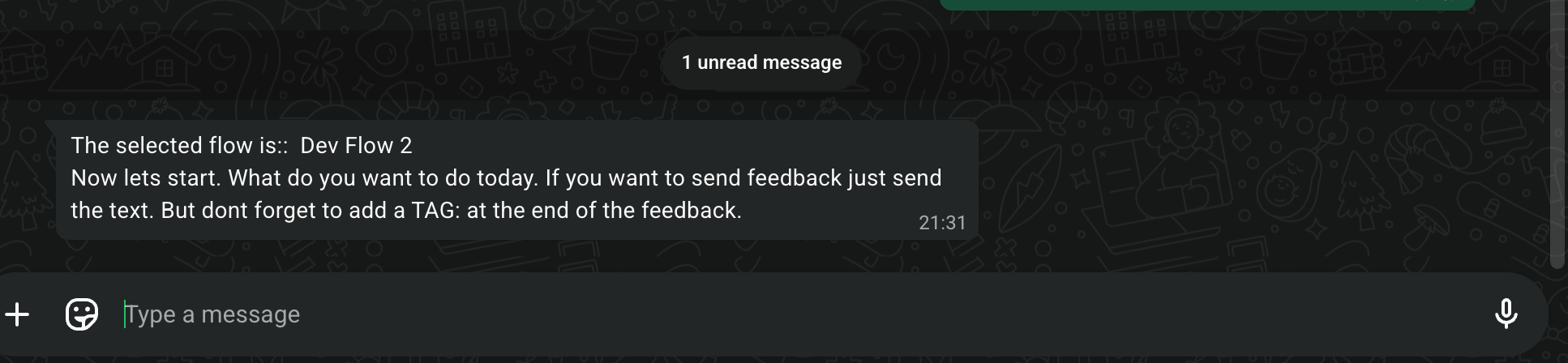
5
Send your feedback
Type your feedback and send it. If the feedback comes from a specific group (for example a Person With Disability), prefix it with 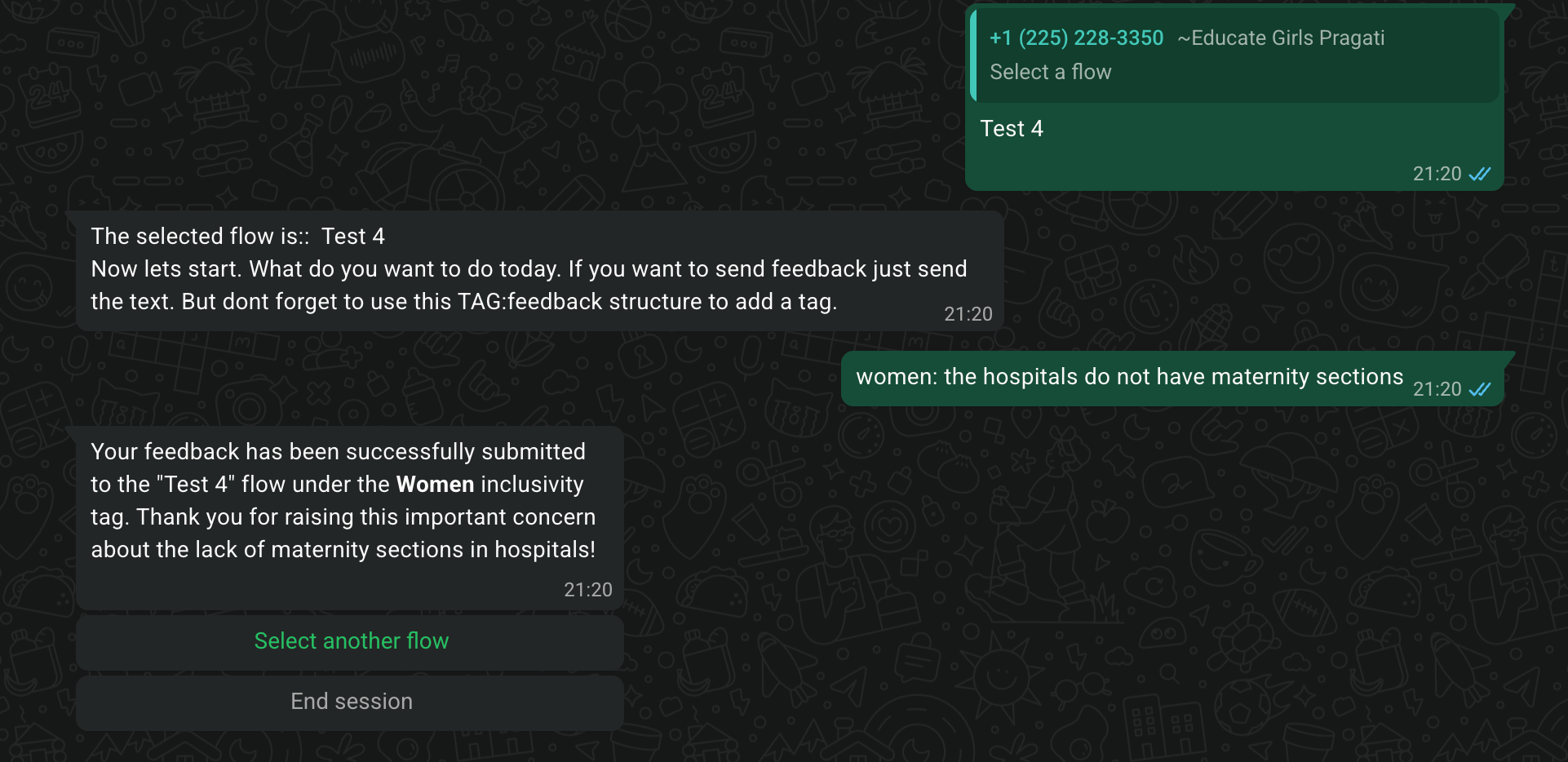
<Group>: — for example Women: add more maternity beds or Elderly: …. The bot replies to confirm the feedback was received and shows the tag it was recorded under.If you don’t add a
<Group>: prefix, the AI categorizes the feedback automatically, or files it under General when no category fits.6
Continue, switch flows, or end the session
From here you can keep sending more feedback on the same flow, switch to a different flow, or end the session.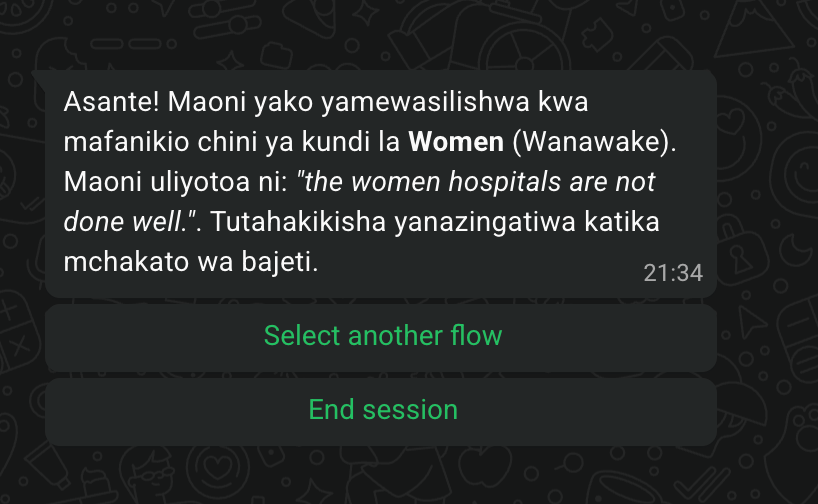
Submitting feedback (photos)
Once you’re inside a flow (see Submitting feedback (text)), attach a photo to your WhatsApp message and add a caption describing it. The caption is submitted as the feedback text and the photo is stored alongside it.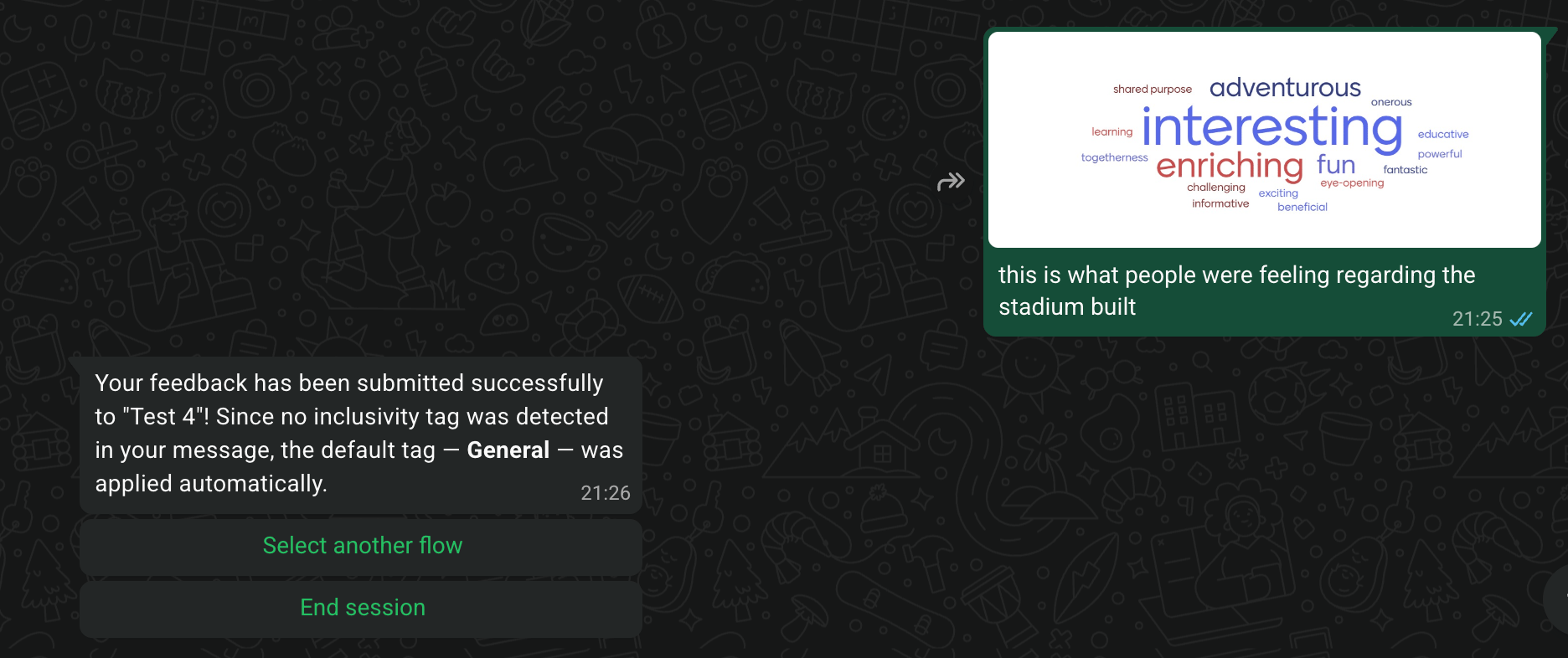
If you send a photo without a caption, the bot will ask you for a message first, and only submit the feedback once you reply with the text.
Submitting feedback (PDF upload)
Once you’re inside a flow (see Submitting feedback (text)), attach a PDF to your WhatsApp message. No caption is needed — the bot assumes all the feedback is contained in the PDF itself.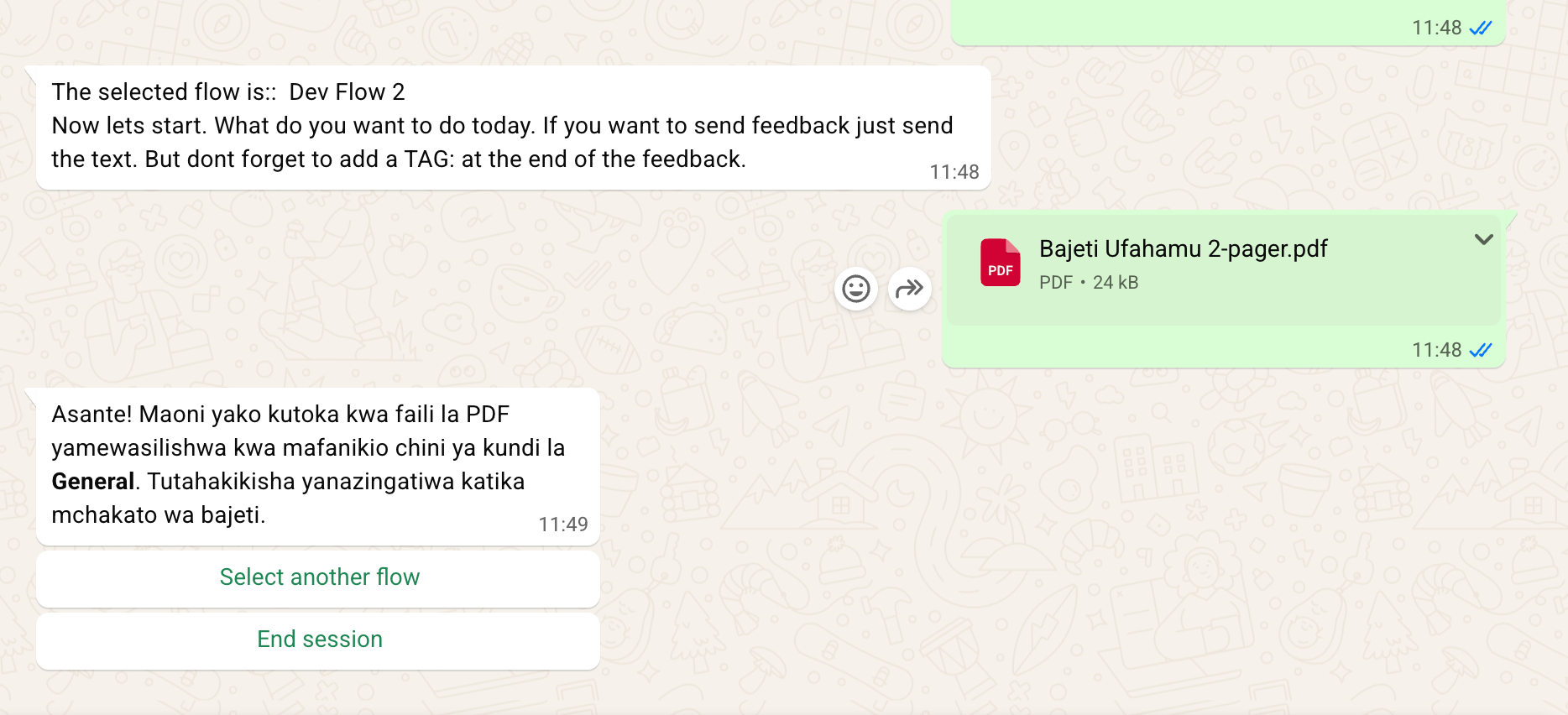
Conversation memory
The bot remembers your language choice and the flow you’re currently working on, so you don’t have to reselect them every time you send a new message.Bilingual replies
You can switch the conversation between English (EN) and Swahili (SW) at any time. Once you switch, the bot replies in that language for the rest of the conversation until you switch back.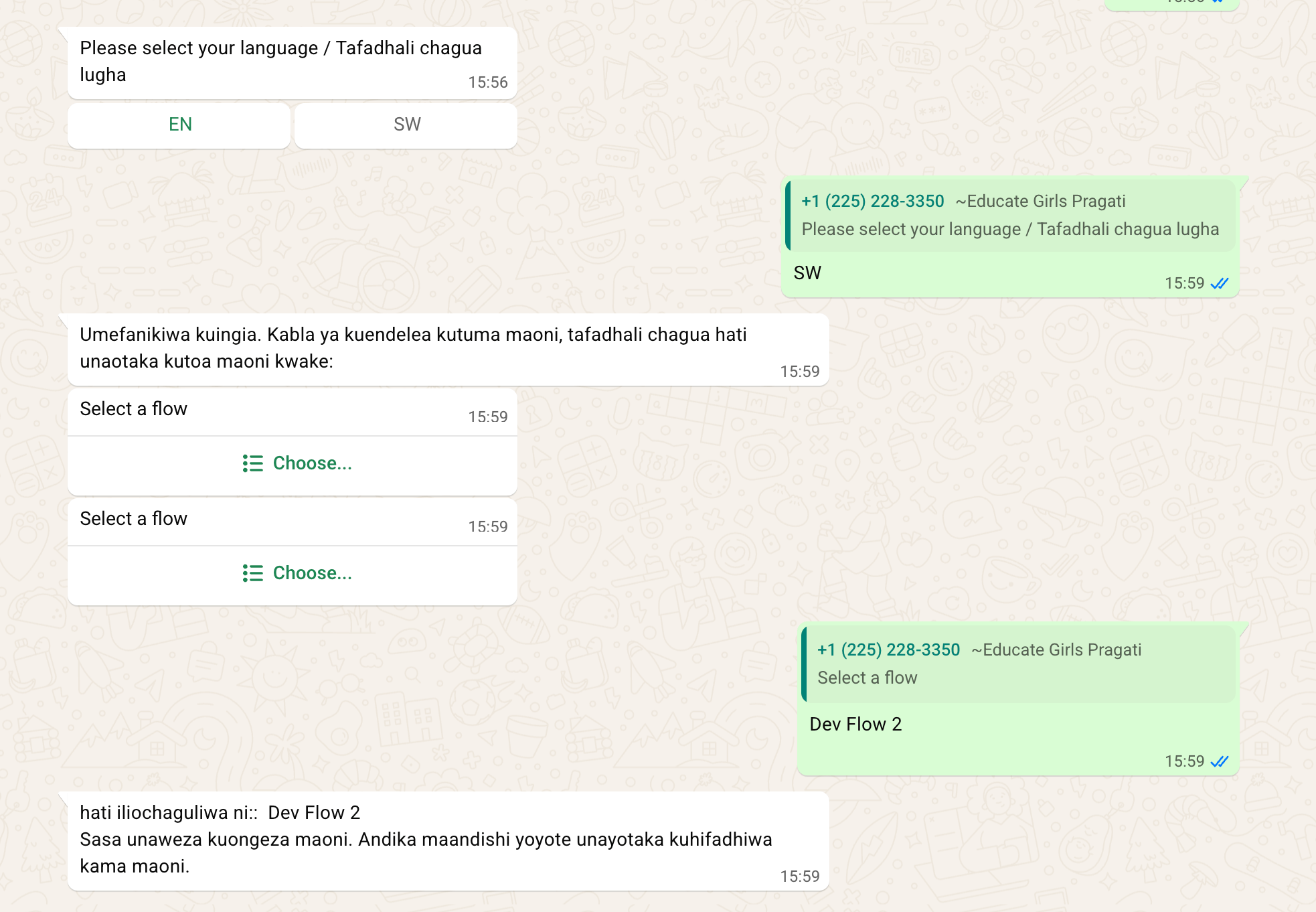
Getting a flow document
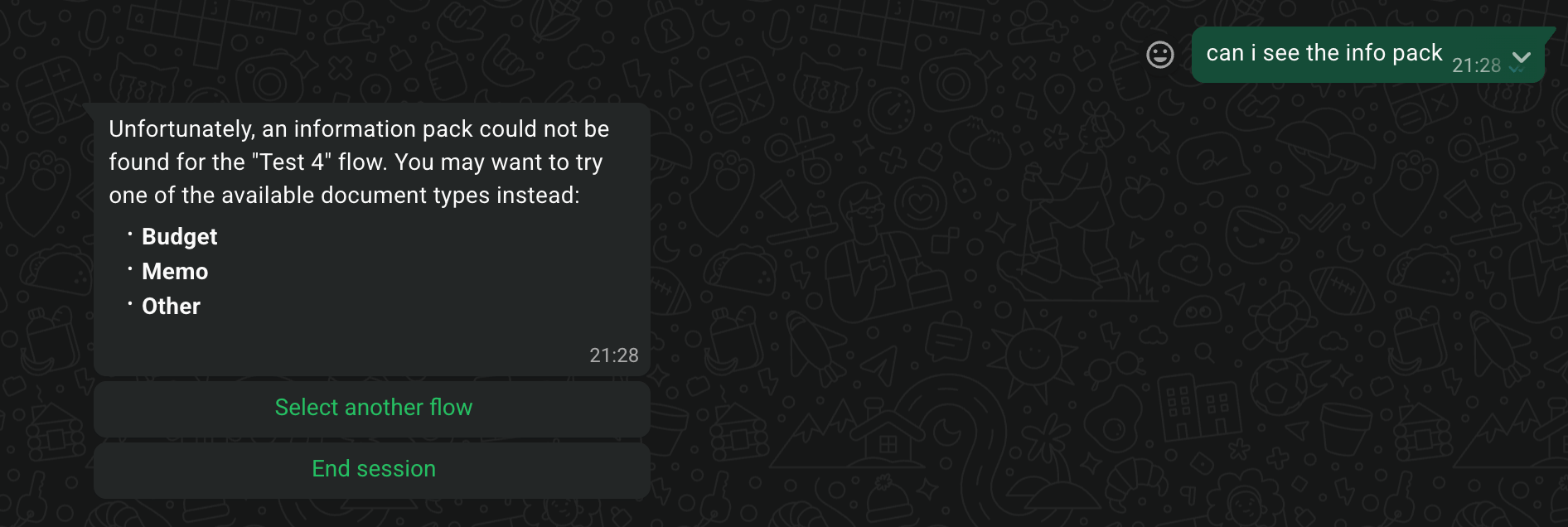
Once you’re inside a flow (see Submitting feedback (text)), ask the bot for the document you want — for example I want the budget document, I want the infopack, or I want the memo. If the document has been uploaded to the flow, the bot replies with a download link.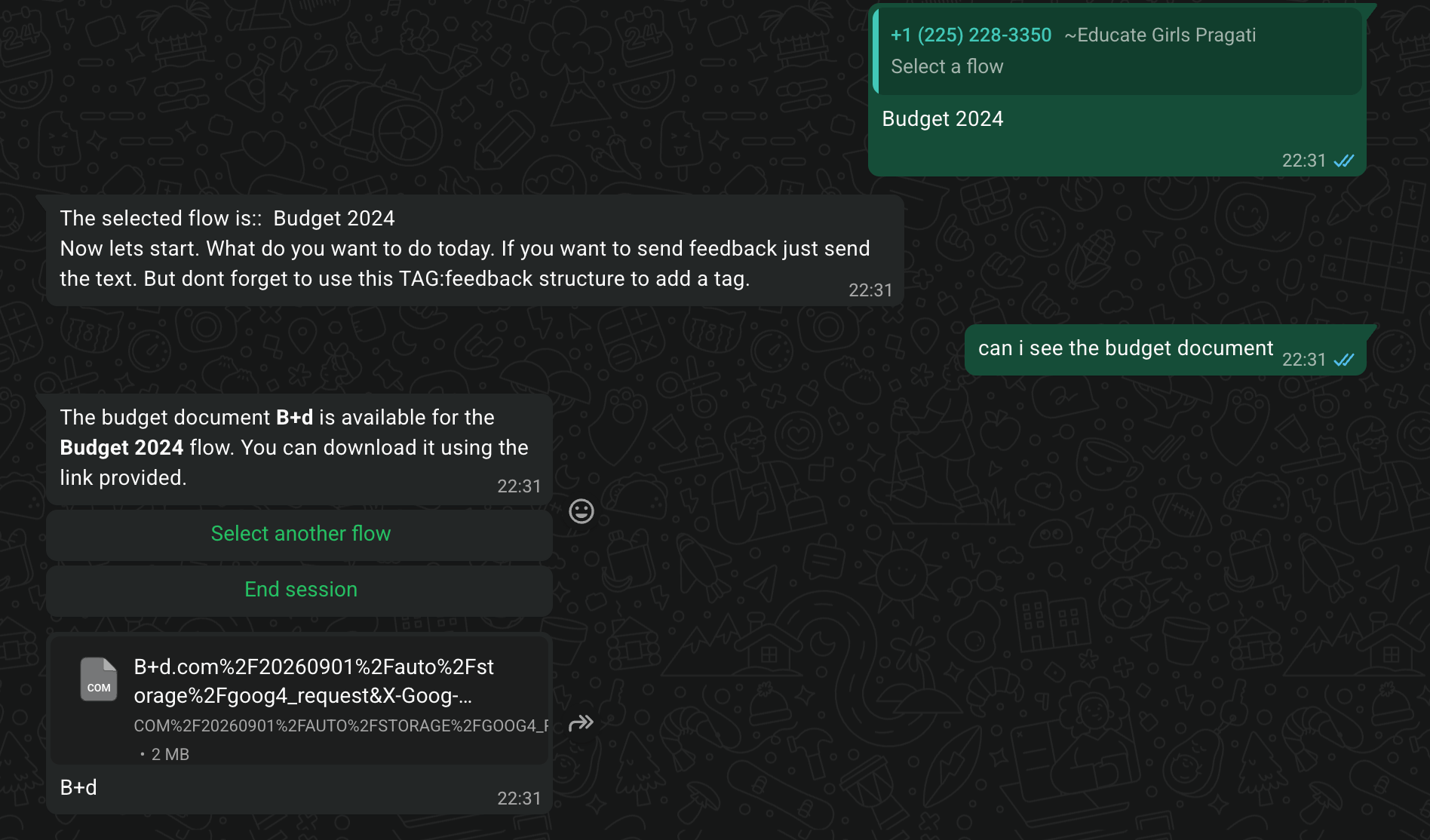
Getting a flow status overview
Once you’re inside a flow (see Submitting feedback (text)), just ask What is the status? and the bot replies with a summary of where the flow is in its lifecycle.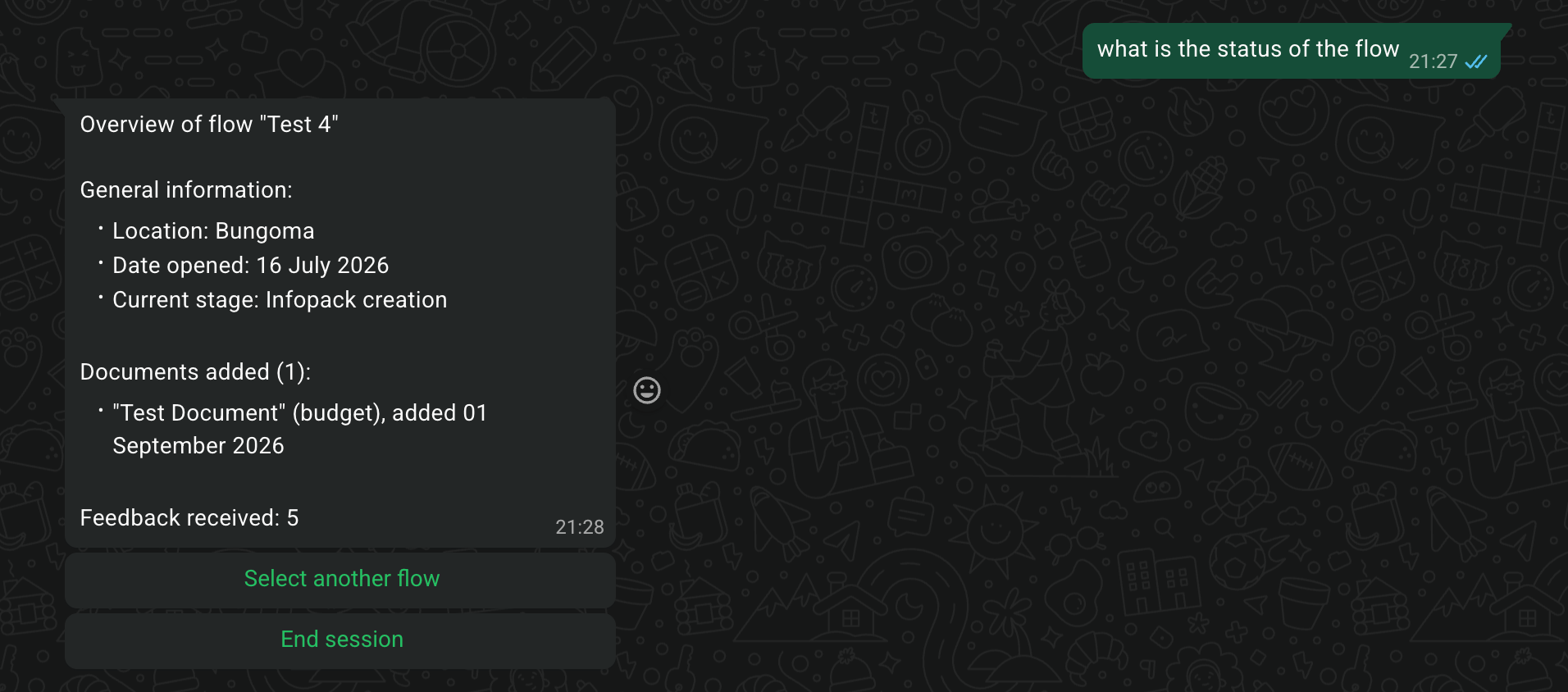
Off-topic messages
If you ask a question or send something that isn’t related to budget participation, the bot still replies — it lets you know the message is off-topic and points you back to what it can help with.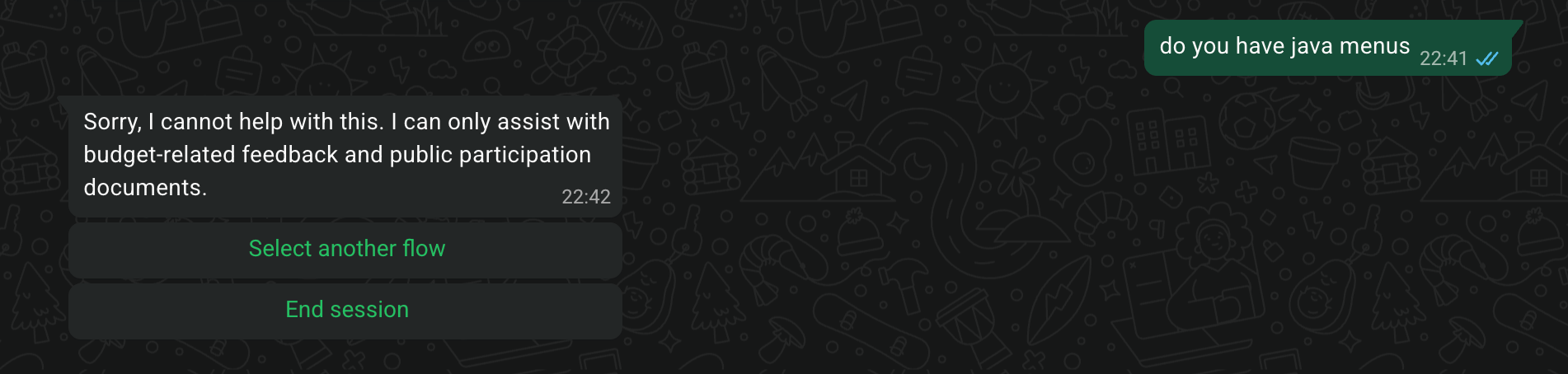
Notifications you’ll receive
The bot proactively sends you notifications when something happens on a flow you’re involved in. You don’t need to be in an active conversation to receive them.WhatsApp notifications are only sent to Champions. Facilitators and Coordinators receive the same notifications by email instead.
- Flow created
- Flow approved
- Flow closed
- Flow archived
- Feedback collection started
- Feedback collection ended
- Document approval needed
- Document approved
- Onboarding confirmation
Notifications are delivered via WhatsApp. If WhatsApp delivery fails, the bot falls back to SMS.