The Connectors tab
Every flow has a Connectors tab. It has two sections:- Direct Input: always-on channels that are already configured: PDF Upload (Champion-submitted aggregated feedback reports) and whatsapp bot.
- External Connections: KoboToolbox and Google Sheets connections that pull structured submissions in as feedback automatically. This is where you add, edit, or remove connectors.
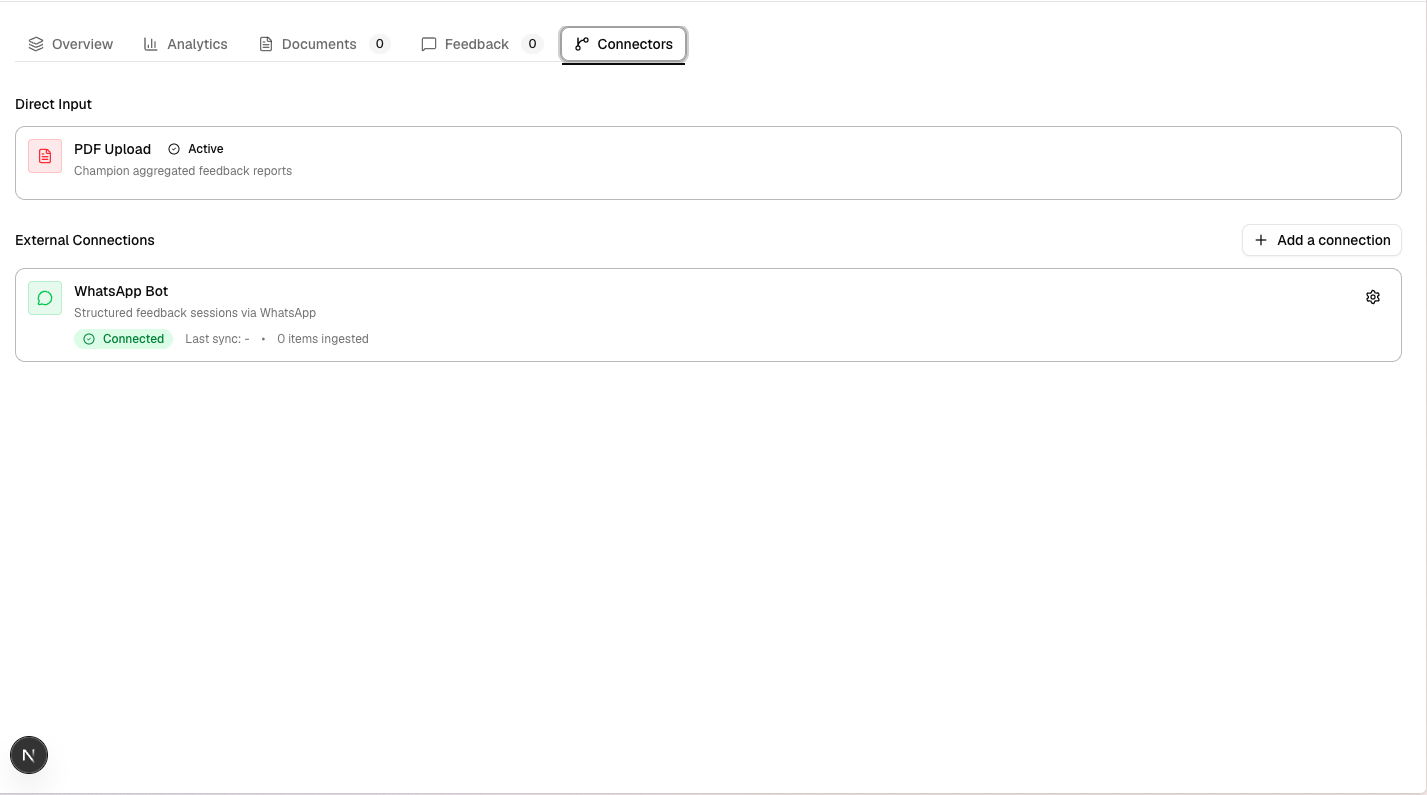
The Connectors tab, showing Direct Input and External Connections
Add a connector
1
Click Add a connection
From the Connectors tab, click Add a connection (or Add your first connection if none exist yet).
2
Choose a connection type
Pick KoboCollect or Google Sheets. (SMS/USSD and WhatsApp Bot connection types are listed but not yet available.) Kobo allows only one connection per flow; you can add multiple Google Sheets connections.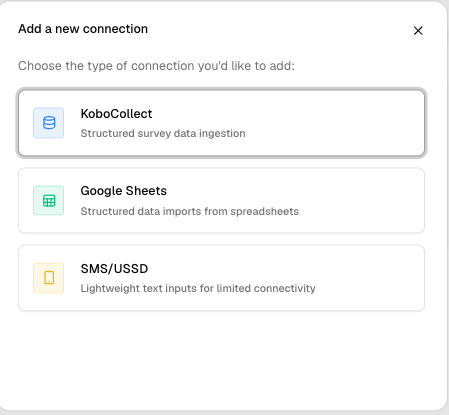
Configure a KoboToolbox connection
1
Enter the server URL
Choose your Kobo server (
https://kf.kobotoolbox.org, https://eu.kobotoolbox.org, or a custom URL). Use the “Help me find this” link if you’re not sure which one applies.2
Enter your API key
Paste your Kobo API key. There’s a “Help me find this” link here too.
3
Connect to the server
Click Connect to server. This confirms your credentials and loads the list of Kobo assets (forms) available to you.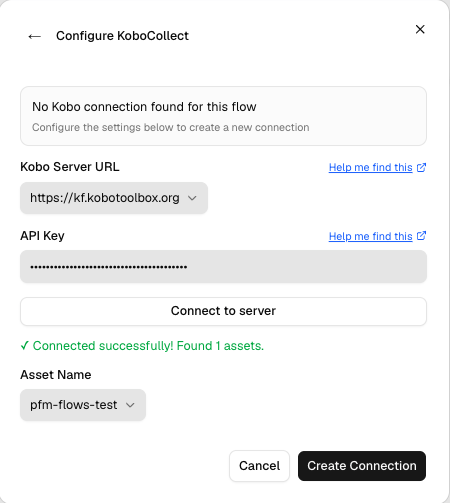
4
Select the asset and create the connection
Choose the Kobo asset (form) to pull submissions from, then click Create Connection.
Configure a Google Sheets connection
1
Share the sheet with the service account
Give the service account
pfm-sheets-service-account@pfm-flows.iam.gserviceaccount.com view access to your Google Sheet. The connection will fail without this.2
Enter the sheet URL and connect
Paste the Google Sheet URL and click Connect. This loads the list of worksheets in that spreadsheet.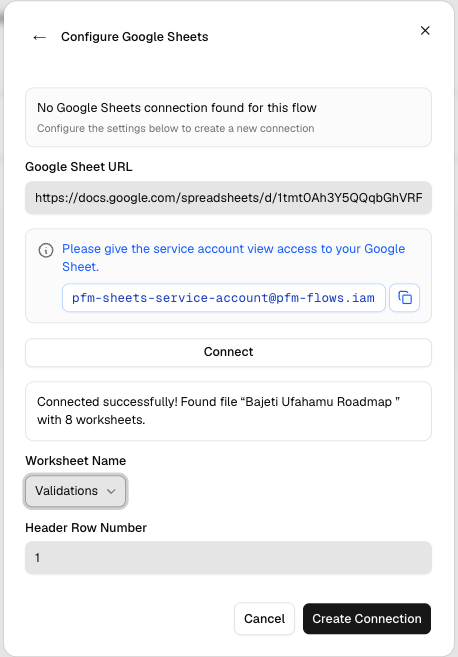
3
Select the worksheet and header row
Choose the worksheet, set the Header Row Number (which row contains column headers), then click Create Connection.
Ingest data
Once a connector is connected, click Ingest data on its card to pull in new submissions/rows on demand. The card shows last sync time and how many items have been ingested so far.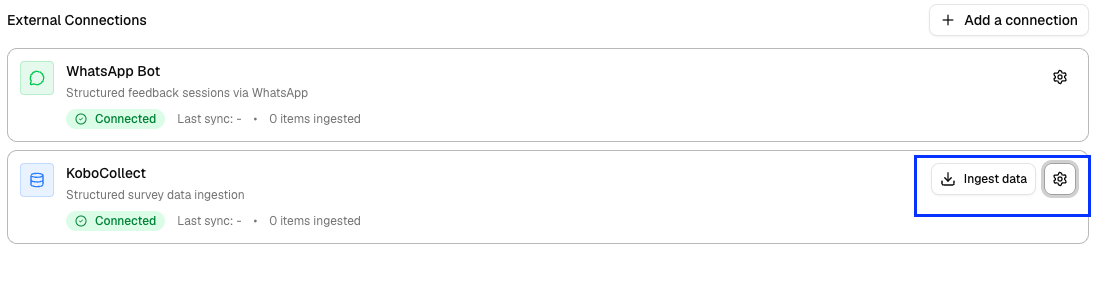
Edit or refresh a connector
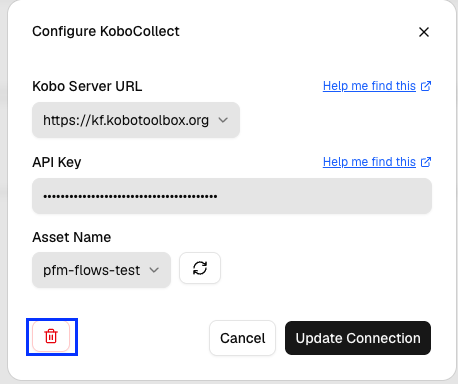
Click the ⚙ (gear) icon on a connector’s card to reopen its configuration, update the server/sheet details, or use the refresh button next to the asset/worksheet selector to reload the list without re-entering credentials.Delete a connector
From the connector’s configuration dialog, click the trash icon, then confirm. This can’t be undone. Any feedback already ingested through that connection stays, but the connection itself and its sync history are removed.