> ## Documentation Index
> Fetch the complete documentation index at: https://guide.bajeti-ufahamu.org/llms.txt
> Use this file to discover all available pages before exploring further.
# Webapp: Users & Roles
> Inviting, viewing, editing, and managing user accounts.
## The Users page
Role access: all roles
The **Users** page (in the main navigation) lists every user account on the platform.
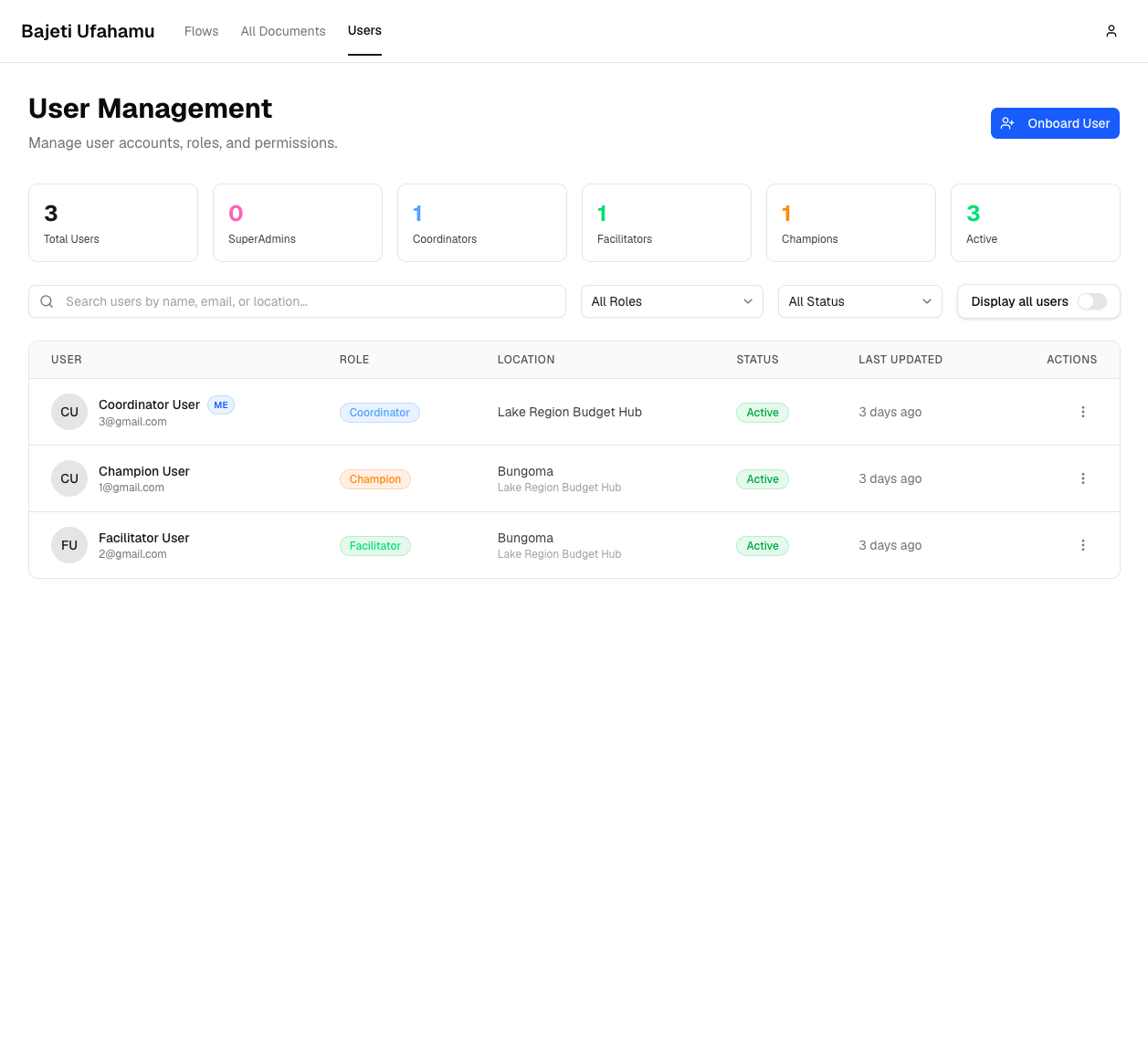 * A summary strip shows Total Users, SuperAdmins, Coordinators, Facilitators, Champions, and Active counts
* Search by name, email, or location
* Filter by role and by status (Active/Inactive)
* The **Display all users** toggle switches from your default location-scoped view to every user across the platform
* Each row shows the user's role, location, active/inactive status, and when they were last updated
## Invite a user
Role access: Facilitator and above
* A summary strip shows Total Users, SuperAdmins, Coordinators, Facilitators, Champions, and Active counts
* Search by name, email, or location
* Filter by role and by status (Active/Inactive)
* The **Display all users** toggle switches from your default location-scoped view to every user across the platform
* Each row shows the user's role, location, active/inactive status, and when they were last updated
## Invite a user
Role access: Facilitator and above
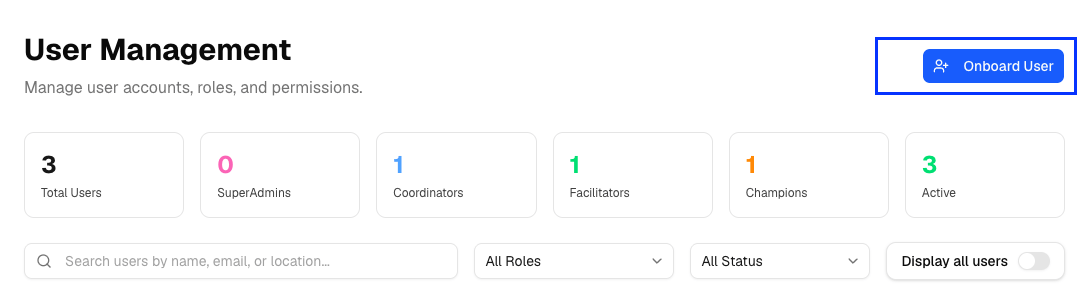 * **Delivery Method** : Email or SMS
* **Email Address** (required if delivery is Email) and/or **Phone Number** (required if delivery is SMS). Phone numbers are entered as the 9-digit Kenyan number, without the country code
* **Role**: only roles at or below your own level are offered (SuperAdmins can also invite other SuperAdmins)
* **Assigned County/Region**: which location field appears, and which locations you can pick from, depends on the role selected: Champion and Facilitator need a county, Coordinator needs a region, SuperAdmin needs a country
* **Delivery Method** : Email or SMS
* **Email Address** (required if delivery is Email) and/or **Phone Number** (required if delivery is SMS). Phone numbers are entered as the 9-digit Kenyan number, without the country code
* **Role**: only roles at or below your own level are offered (SuperAdmins can also invite other SuperAdmins)
* **Assigned County/Region**: which location field appears, and which locations you can pick from, depends on the role selected: Champion and Facilitator need a county, Coordinator needs a region, SuperAdmin needs a country
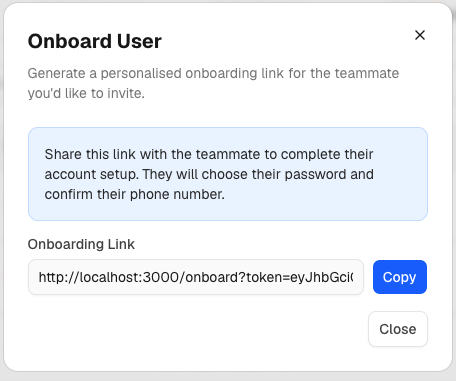
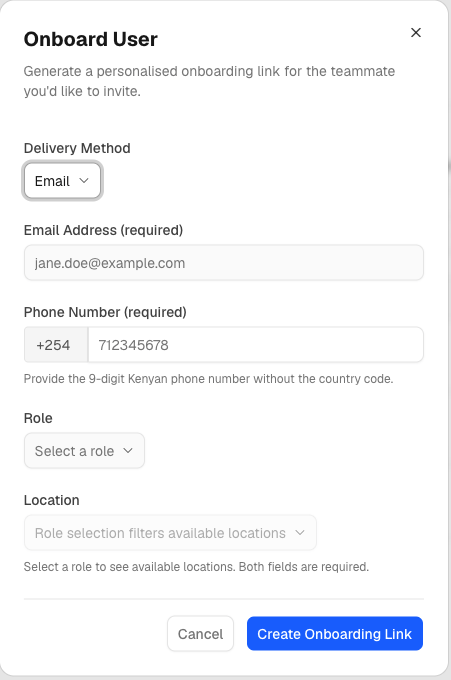 Click **Create Onboarding Link**, then **Copy** the generated link and send it to the new user yourself. The link will also be sent to the newly onboarded user using the selected delivery method.
 ## View user details
Role access: all roles
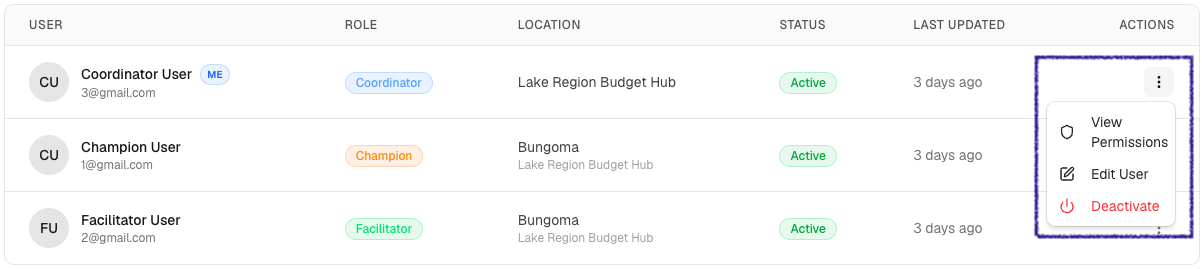
Click a user's row, or choose **View Permissions** from its **⋮** menu.
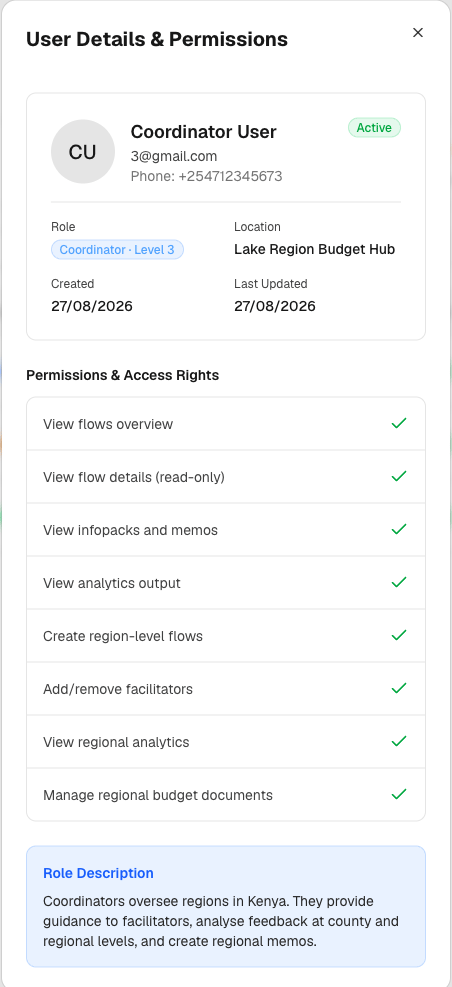
The dialog shows the user's contact details, role and hierarchy level, location, and account dates, plus a full checklist of what that role can do.
## View user details
Role access: all roles
Click a user's row, or choose **View Permissions** from its **⋮** menu.
The dialog shows the user's contact details, role and hierarchy level, location, and account dates, plus a full checklist of what that role can do.
 ## Edit a user
Role access: Facilitator and above can edit anyone; Champions can only edit their own name, email, and phone
From a user's **⋮** menu, choose **Edit User**.
## Edit a user
Role access: Facilitator and above can edit anyone; Champions can only edit their own name, email, and phone
From a user's **⋮** menu, choose **Edit User**.
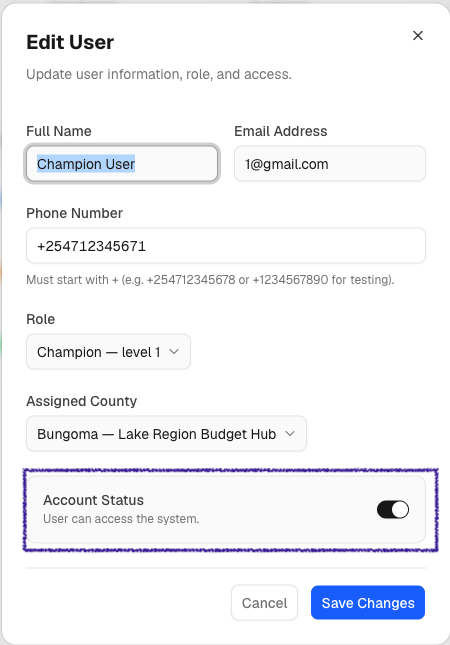
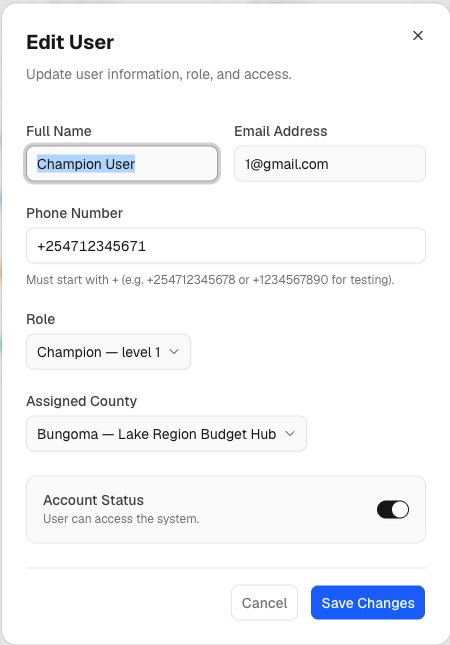
 Name, email, and phone can always be edited. Role, location, and account status are only editable by Facilitator and above.
Users can only edit by another user below them.
Name, email, and phone can always be edited. Role, location, and account status are only editable by Facilitator and above.
Users can only edit by another user below them.
 Click **Save Changes**.
## Activate or deactivate a user
Role access: Facilitator and above
From a user's **⋮** menu, choose **Deactivate** (or **Reactivate** for an inactive user). A deactivated user can no longer log in.
Click **Save Changes**.
## Activate or deactivate a user
Role access: Facilitator and above
From a user's **⋮** menu, choose **Deactivate** (or **Reactivate** for an inactive user). A deactivated user can no longer log in.