> ## Documentation Index
> Fetch the complete documentation index at: https://guide.bajeti-ufahamu.org/llms.txt
> Use this file to discover all available pages before exploring further.
# Webapp: Flow Management
> Creating, tracking, and managing budget-participation flows.
## The Flows page
The **Flows** page lists every flow you have access to, grouped into **Active**, **Completed**, and **Archived** sections.
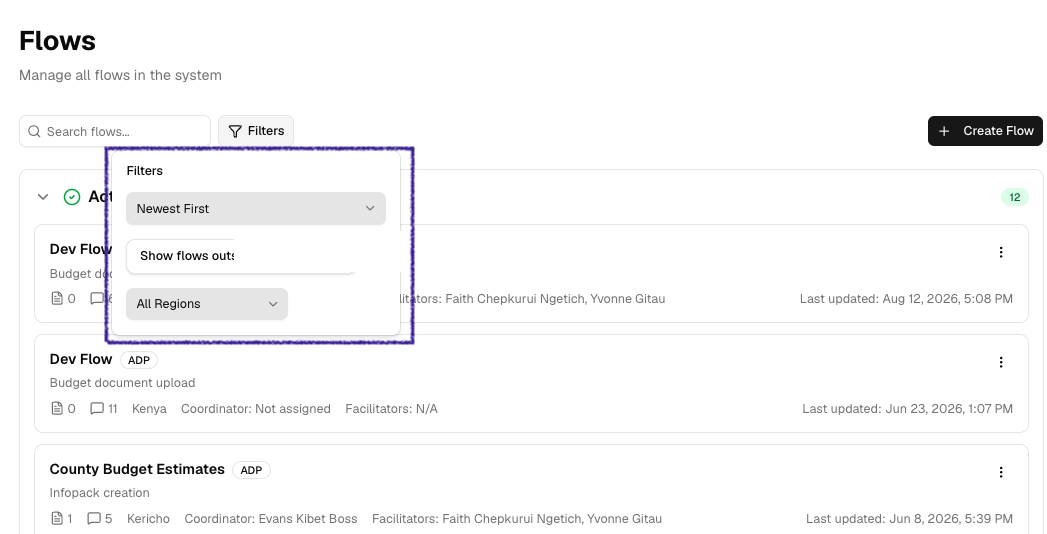
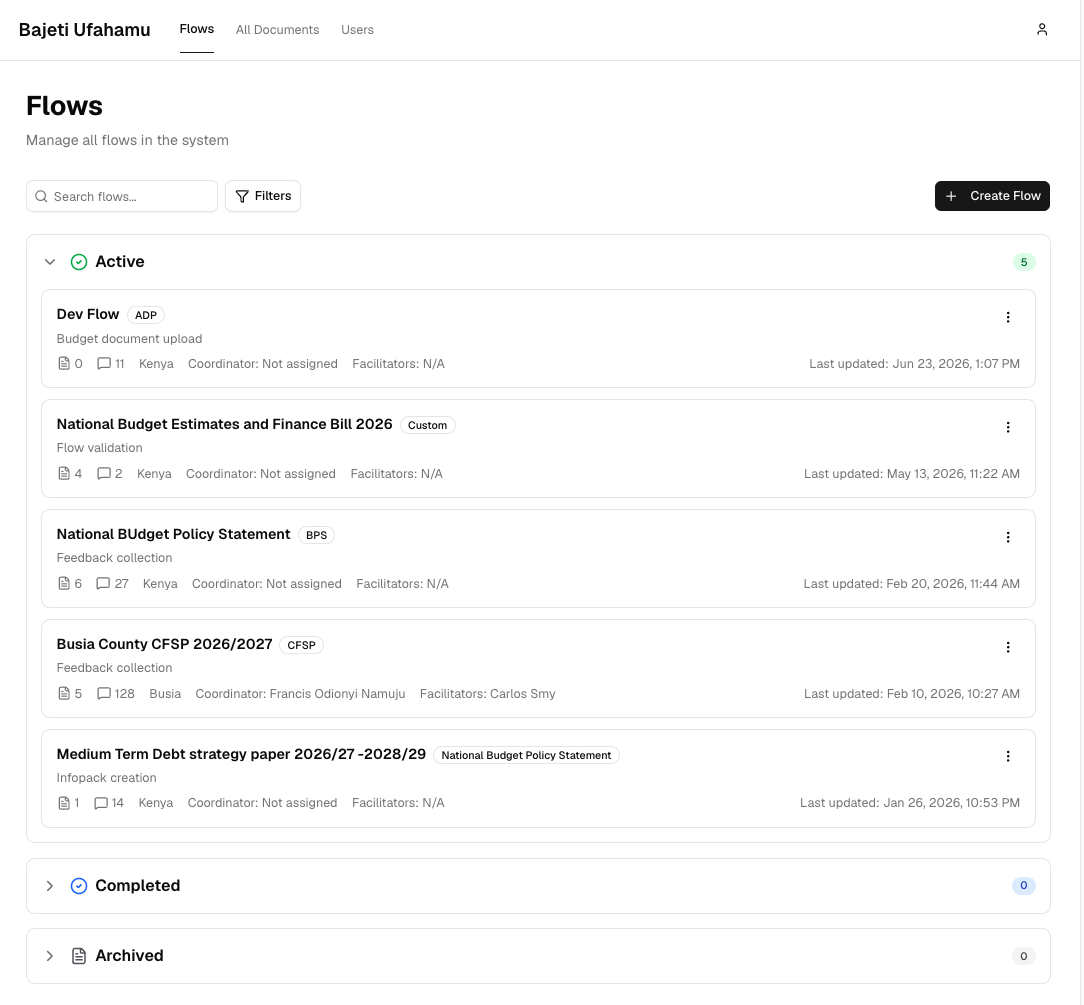 Use the search bar to find a flow by name or type, or narrow the list with the region filter and the recency sort. The **My flows** / **All flows** toggle switches between flows you're personally involved in (the default) and every flow available on Bajeti Ufahamu
 ## Create a flow
Role access: Facilitator and above
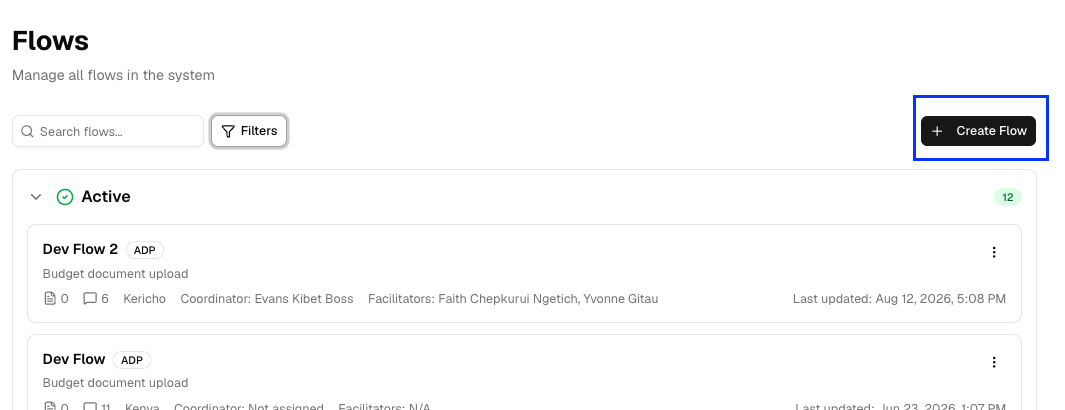
From the Flows page, click **Create Flow**.
## Create a flow
Role access: Facilitator and above
From the Flows page, click **Create Flow**.
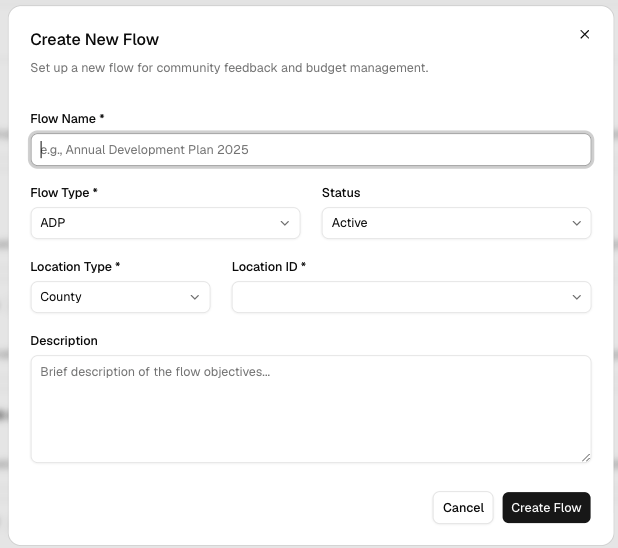
 * **Flow Name** (required) this is the name that is used to identify the flow in the app and on whatsapp. It should clearly indicate what document the flow represents as well as the year.
* **Flow Type** (required): the budget document whose lifecycle this flow is tracking. Options are: BPS, ADP, CFSP, County Budget Review, Sector Working Report, or Custom
* **Status**: controls which section of the Flows page the flow shows up in. Default is Active.
* **Location Type**: the administrative level the flow belongs to: County, Region, or Country.
* **Location**: the specific county/region/country the flow is for; options are limited to your own assigned location and its scope (a Facilitator only sees their county; a Coordinator sees their region and its counties)
* **Description** (optional): A description of the flow that is being created.
* **Flow Name** (required) this is the name that is used to identify the flow in the app and on whatsapp. It should clearly indicate what document the flow represents as well as the year.
* **Flow Type** (required): the budget document whose lifecycle this flow is tracking. Options are: BPS, ADP, CFSP, County Budget Review, Sector Working Report, or Custom
* **Status**: controls which section of the Flows page the flow shows up in. Default is Active.
* **Location Type**: the administrative level the flow belongs to: County, Region, or Country.
* **Location**: the specific county/region/country the flow is for; options are limited to your own assigned location and its scope (a Facilitator only sees their county; a Coordinator sees their region and its counties)
* **Description** (optional): A description of the flow that is being created.
 Click **Create Flow** to save it. It appears immediately in the Flows list.
Coordinator, facilitator and champions are automatically assigned to flows
based on the location.
## Edit a flow
Role access: Facilitator and above, within their location scope
From the Flows page, open the **⋮** menu on a flow card and choose **Edit Flow**. This opens the same the edit form. Update any field and click **Update Flow**.
## Archive a flow
Role access: Facilitator and above
To archive a flow, **edit it** and set **Status** to **Archived**, then save. The flow moves to the Archived section of the Flows page.
## The flow detail page
Clicking a flow opens its workspace, with five tabs: **Overview**, **Analytics**, **Documents**, **Feedback**, **Connectors**.
Click **Create Flow** to save it. It appears immediately in the Flows list.
Coordinator, facilitator and champions are automatically assigned to flows
based on the location.
## Edit a flow
Role access: Facilitator and above, within their location scope
From the Flows page, open the **⋮** menu on a flow card and choose **Edit Flow**. This opens the same the edit form. Update any field and click **Update Flow**.
## Archive a flow
Role access: Facilitator and above
To archive a flow, **edit it** and set **Status** to **Archived**, then save. The flow moves to the Archived section of the Flows page.
## The flow detail page
Clicking a flow opens its workspace, with five tabs: **Overview**, **Analytics**, **Documents**, **Feedback**, **Connectors**.
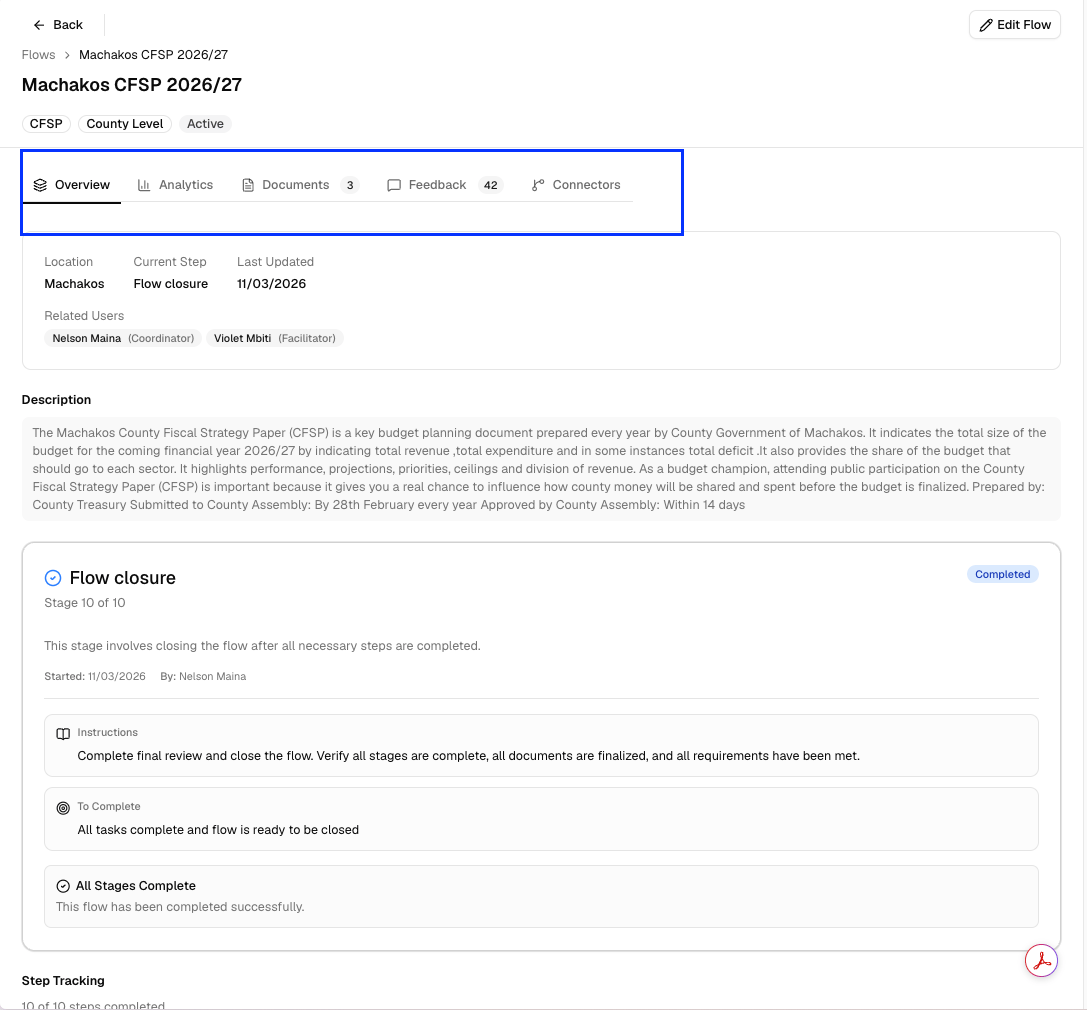 ### Overview tab
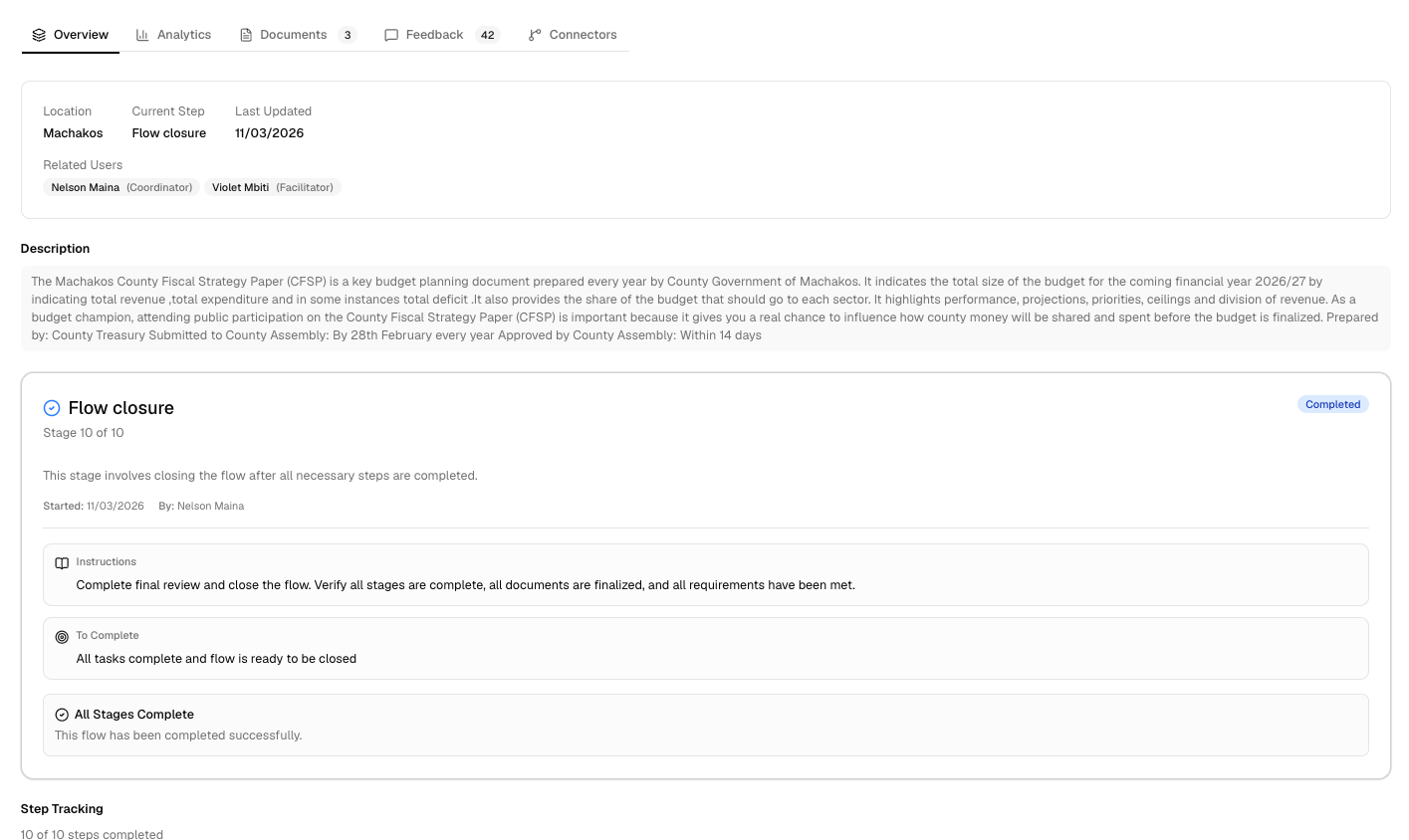 Shows:
* **Location**, **Current Step**, **Last Updated**, and **Related Users** (coordinator and facilitators assigned to the flow's location)
* **Description**
* The **current stage card**: the active stage's instructions and completion criteria (see [Stage instructions](#stage-instructions) below), with a button to advance it
* **Stage Tracking**: every stage in the flow's lifecycle, with its status
#### Stage instructions
Every flow moves through the same set of stages. Some complete automatically; others need someone to confirm the work is done.
Shows:
* **Location**, **Current Step**, **Last Updated**, and **Related Users** (coordinator and facilitators assigned to the flow's location)
* **Description**
* The **current stage card**: the active stage's instructions and completion criteria (see [Stage instructions](#stage-instructions) below), with a button to advance it
* **Stage Tracking**: every stage in the flow's lifecycle, with its status
#### Stage instructions
Every flow moves through the same set of stages. Some complete automatically; others need someone to confirm the work is done.
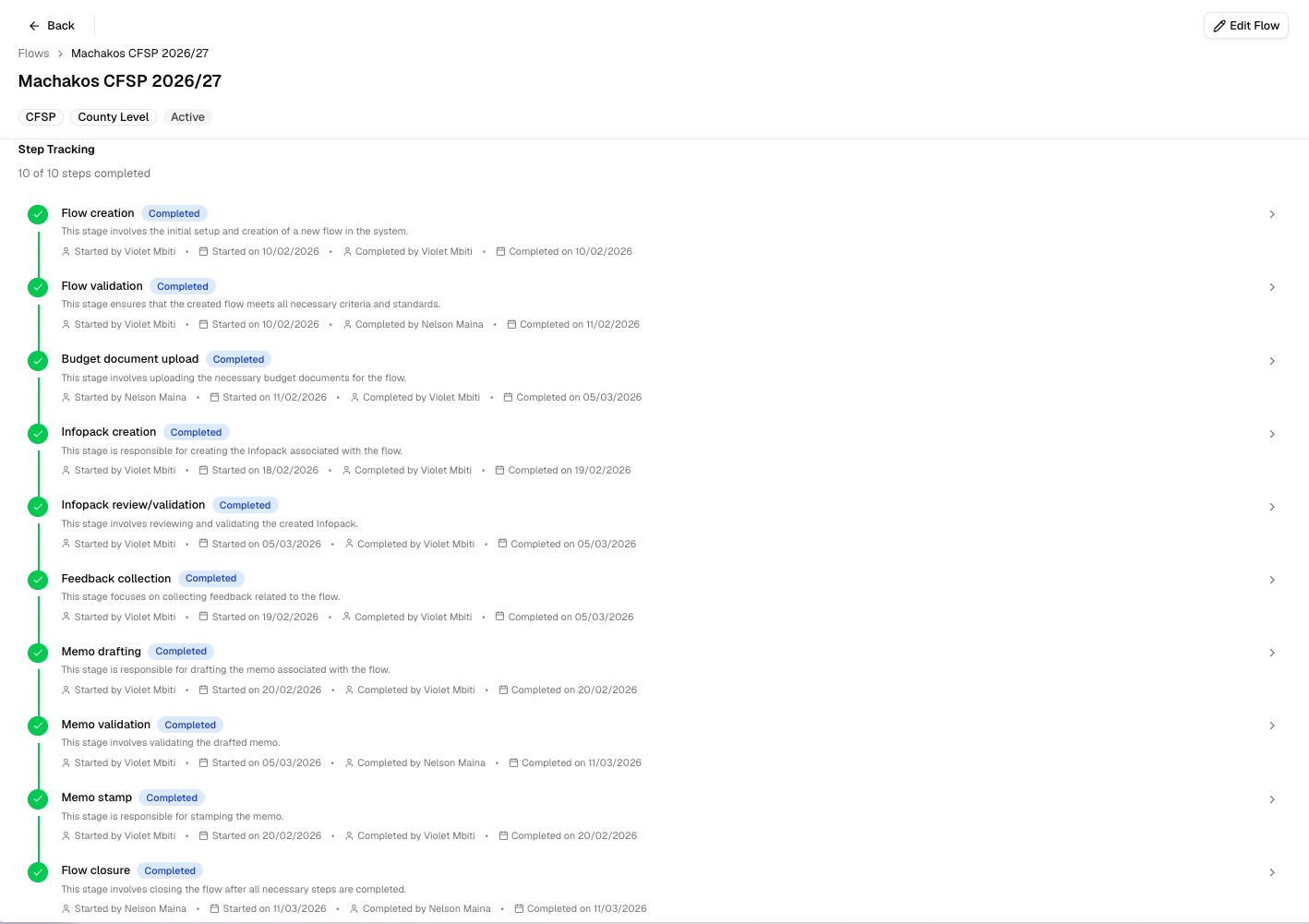 | Stage | Auto-managed? | What it takes |
| -------------------------- | ------------- | ----------------------------------------------------------------------- |
| Flow creation | Yes | Completes automatically when the flow is created |
| Flow validation | No | Review the flow's name, description, location, type, and assigned users |
| Budget document upload | Yes | Completes automatically once the budget document is uploaded |
| Infopack creation | Yes | Completes automatically once the infopack is uploaded |
| Infopack review/validation | No | Review the infopack for accuracy and completeness |
| Feedback collection | No | Confirm enough feedback has been gathered from stakeholders |
| Memo drafting | Yes | Completes automatically once the memo is uploaded |
| Memo validation | No | Review the memo for accuracy and compliance |
| Memo stamp | No | Confirm the memo has been officially stamped |
| Flow closure | No | Final review that confirm all stages and documents are complete |
Click any step in Step Tracking to see its full instructions, completion criteria, and history (who started/completed it and when).
| Stage | Auto-managed? | What it takes |
| -------------------------- | ------------- | ----------------------------------------------------------------------- |
| Flow creation | Yes | Completes automatically when the flow is created |
| Flow validation | No | Review the flow's name, description, location, type, and assigned users |
| Budget document upload | Yes | Completes automatically once the budget document is uploaded |
| Infopack creation | Yes | Completes automatically once the infopack is uploaded |
| Infopack review/validation | No | Review the infopack for accuracy and completeness |
| Feedback collection | No | Confirm enough feedback has been gathered from stakeholders |
| Memo drafting | Yes | Completes automatically once the memo is uploaded |
| Memo validation | No | Review the memo for accuracy and compliance |
| Memo stamp | No | Confirm the memo has been officially stamped |
| Flow closure | No | Final review that confirm all stages and documents are complete |
Click any step in Step Tracking to see its full instructions, completion criteria, and history (who started/completed it and when).
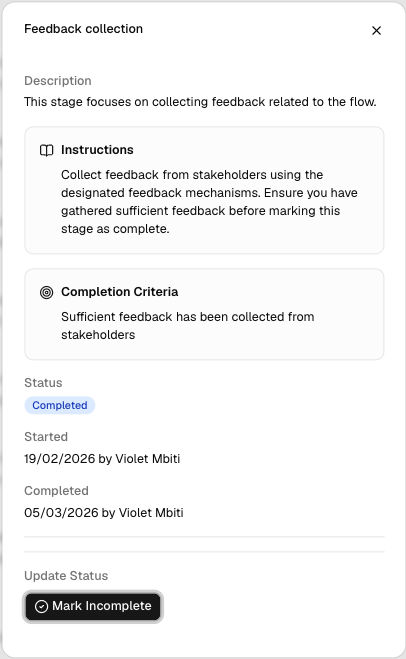 If you have edit access and the step isn't auto-managed, click **Start Step** or **Mark Complete** (or **Mark Incomplete** to reopen a completed step).
Some steps are auto-managed and can't be updated manually. They complete
automatically based on another action (e.g. "Budget document upload" completes
itself once you upload the budget document).
### Documents tab
See [Document Management](/knowledge-base/webapp-documents).
### Analytics tab
See [Analytics](/knowledge-base/webapp-analytics).
### Feedback tab
See [Feedback](/knowledge-base/webapp-feedback) for reviewing and validating participant feedback collected across WhatsApp, KoboToolbox, Google Sheets, and Feedback PDFs.
### Connectors tab
See [Connectors](/knowledge-base/webapp-connectors) for bringing in feedback automatically from KoboToolbox and Google Sheets.
If you have edit access and the step isn't auto-managed, click **Start Step** or **Mark Complete** (or **Mark Incomplete** to reopen a completed step).
Some steps are auto-managed and can't be updated manually. They complete
automatically based on another action (e.g. "Budget document upload" completes
itself once you upload the budget document).
### Documents tab
See [Document Management](/knowledge-base/webapp-documents).
### Analytics tab
See [Analytics](/knowledge-base/webapp-analytics).
### Feedback tab
See [Feedback](/knowledge-base/webapp-feedback) for reviewing and validating participant feedback collected across WhatsApp, KoboToolbox, Google Sheets, and Feedback PDFs.
### Connectors tab
See [Connectors](/knowledge-base/webapp-connectors) for bringing in feedback automatically from KoboToolbox and Google Sheets.