> ## Documentation Index
> Fetch the complete documentation index at: https://guide.bajeti-ufahamu.org/llms.txt
> Use this file to discover all available pages before exploring further.
# Webapp: Feedback
> Reviewing, filtering, and validating participant feedback.
## The Feedback tab
Every flow has a **Feedback** tab with two sub-tabs: **Raw Feedback**, where every submission collected for the flow lands, and **Feedback Insights**, the flow's analytics dashboard.
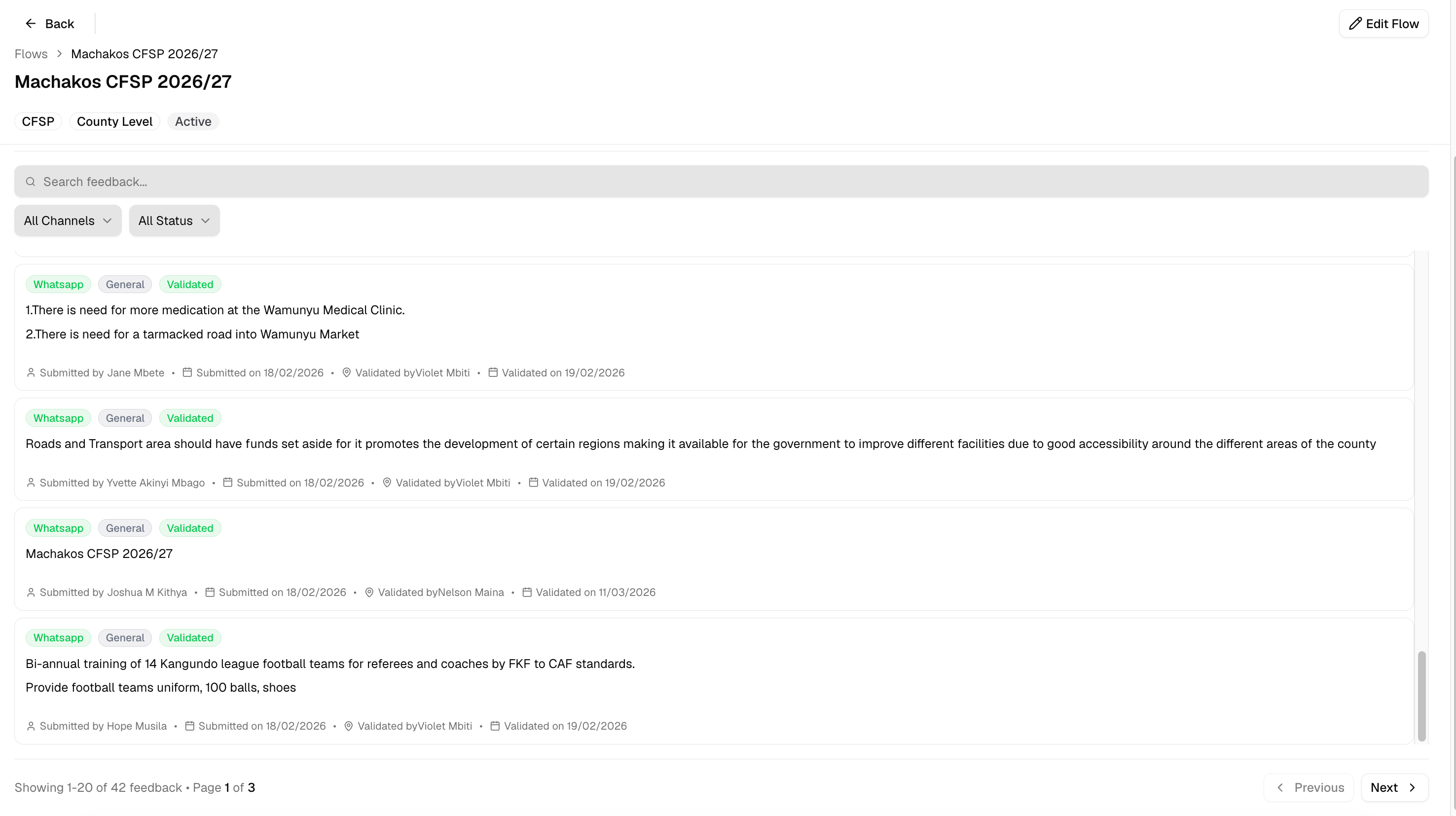 Feedback reaches this tab from several channels: WhatsApp (text, photo, or PDF), KoboToolbox, Google Sheets, or a direct Feedback PDF upload. Each item shows its channel, an inclusivity tag (Women, Youth, Persons with Disabilities, Elderly, or General), who submitted it, and when.
## View and filter feedback
Role access: all roles with access to the flow
From a flow's Feedback tab, the Raw Feedback sub-tab is selected by default.
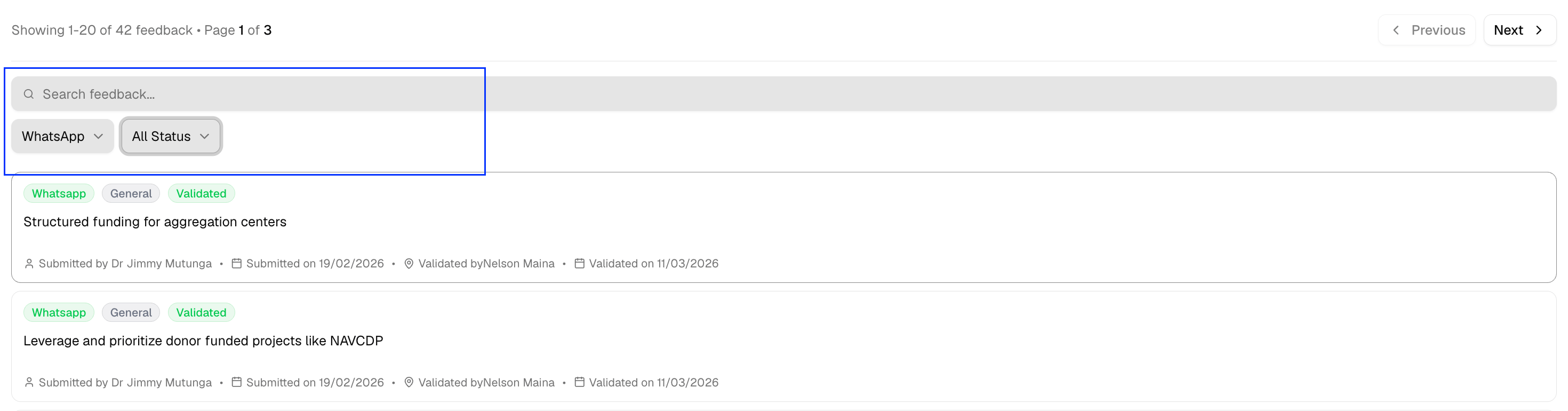
Use the search box to find feedback by content, or narrow the list with the **Channel** filter (WhatsApp, Google Sheet, Kobo, PDF) and the **Status** filter (Pending, Validated).
Feedback reaches this tab from several channels: WhatsApp (text, photo, or PDF), KoboToolbox, Google Sheets, or a direct Feedback PDF upload. Each item shows its channel, an inclusivity tag (Women, Youth, Persons with Disabilities, Elderly, or General), who submitted it, and when.
## View and filter feedback
Role access: all roles with access to the flow
From a flow's Feedback tab, the Raw Feedback sub-tab is selected by default.
Use the search box to find feedback by content, or narrow the list with the **Channel** filter (WhatsApp, Google Sheet, Kobo, PDF) and the **Status** filter (Pending, Validated).
 ## Validate feedback
Role access: Facilitator and above, within their location scope
Validating a piece of feedback marks it as reviewed, making sure the feedback is included in the analytics dashboard
Filter by **Status: Pending** to see everything still awaiting review.
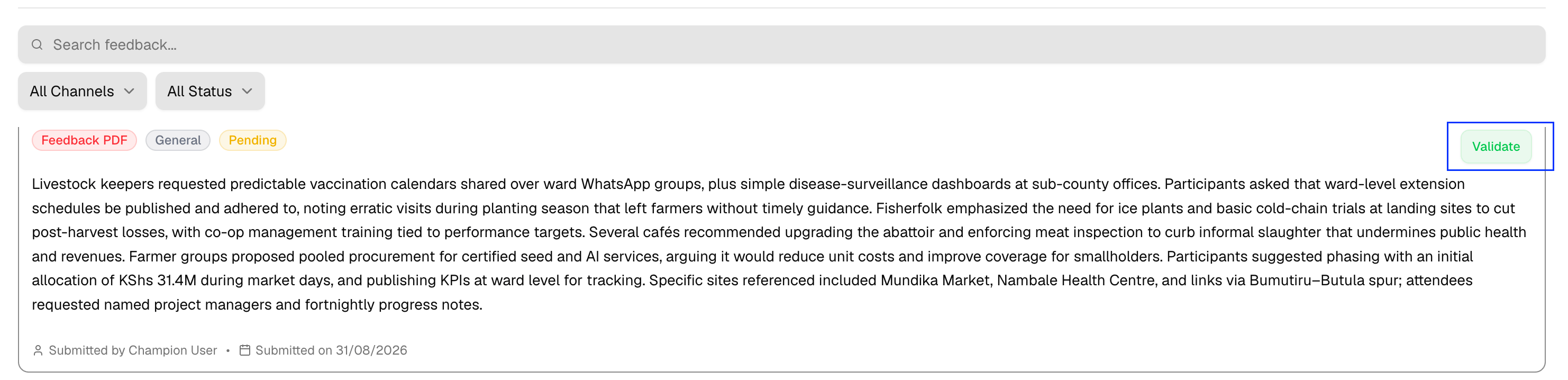
Click **Validate** on the item. It moves to "Validated" and records who validated it and when.
## Validate feedback
Role access: Facilitator and above, within their location scope
Validating a piece of feedback marks it as reviewed, making sure the feedback is included in the analytics dashboard
Filter by **Status: Pending** to see everything still awaiting review.
Click **Validate** on the item. It moves to "Validated" and records who validated it and when.
 ## Feedback Insights
The **Feedback Insights** sub-tab is the same dashboard as the flow's Analytics tab: see [Analytics](/knowledge-base/webapp-analytics) for summaries, charts, and the PDF report.
## Feedback Insights
The **Feedback Insights** sub-tab is the same dashboard as the flow's Analytics tab: see [Analytics](/knowledge-base/webapp-analytics) for summaries, charts, and the PDF report.